Install via Civo Marketplace
This documentation provides detailed instructions on how to install the KubeRocketCI platform via Civo Marketplace. As a prerequisite, make sure to sign up on Civo.
Launch Cluster
The first step of the installation procedure is to launch the cluster. Please refer to the official instructions that describe this process in detail. To succeed, follow the steps below:
-
Log in to your personal Civo account.
-
Create a new Kubernetes cluster with the following parameters. Please refer to the official guidelines for more details:
- Name:
demo - How many nodes:
1 - Select size: Type:
Standard, Size:Medium - Network:
Default - Firewall:
Create a new firewallwith the6443and443ports opened - Advanced options: Kubernetes version: latest (currently 1.34.0)
- Marketplace: From the
CI/CDselection chooseArgo CDandTektonfor pre-installation.
- Name:
-
Wait till the cluster is created.
noteThe process of deploying the cluster typically takes about two minutes. Following this, an extra five minutes are needed for the deployment of both the Argo CD and Tekton.
-
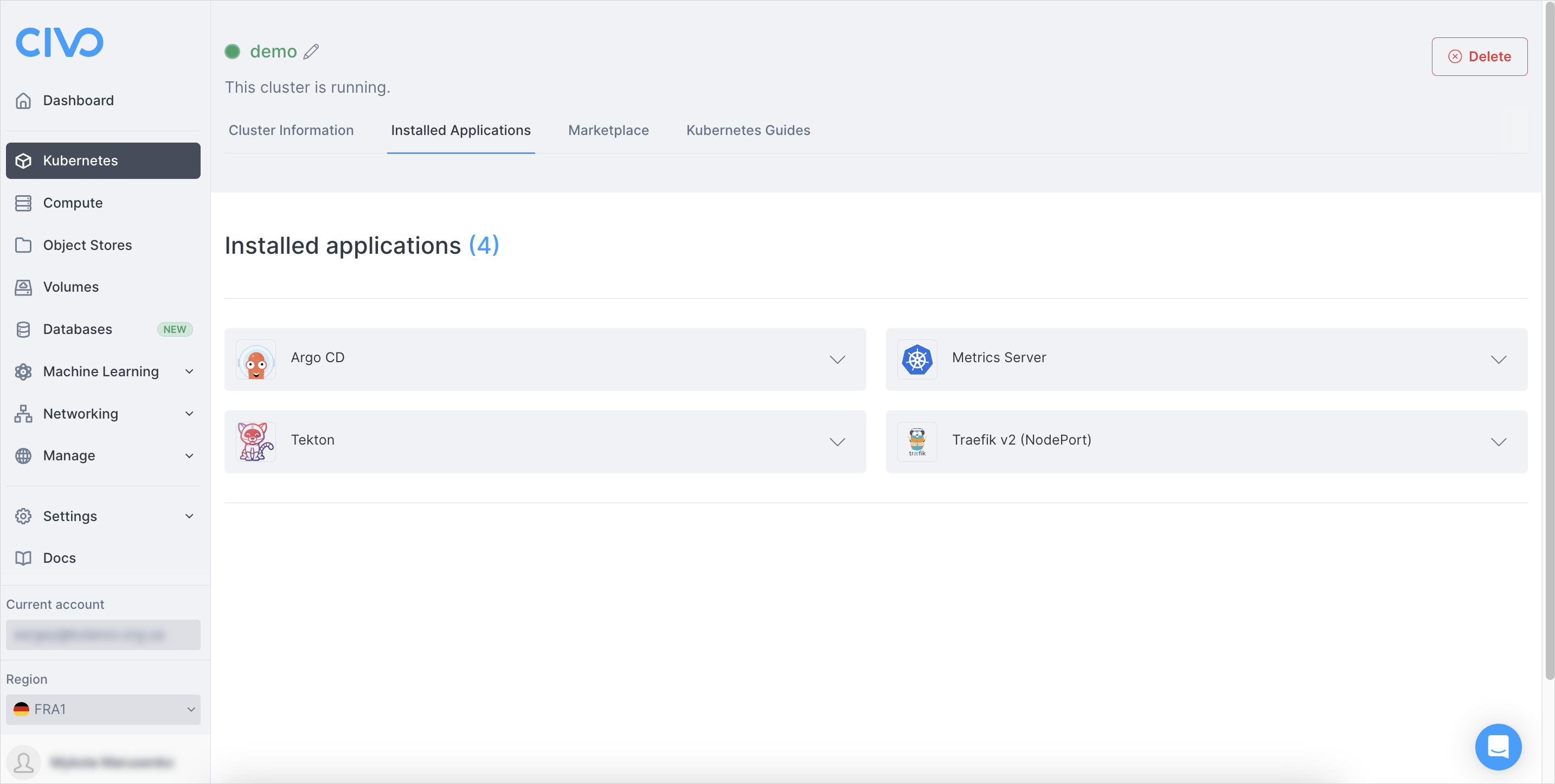
As soon as cluster is deployed, ensure all the marketplace applications are installed, too:
-
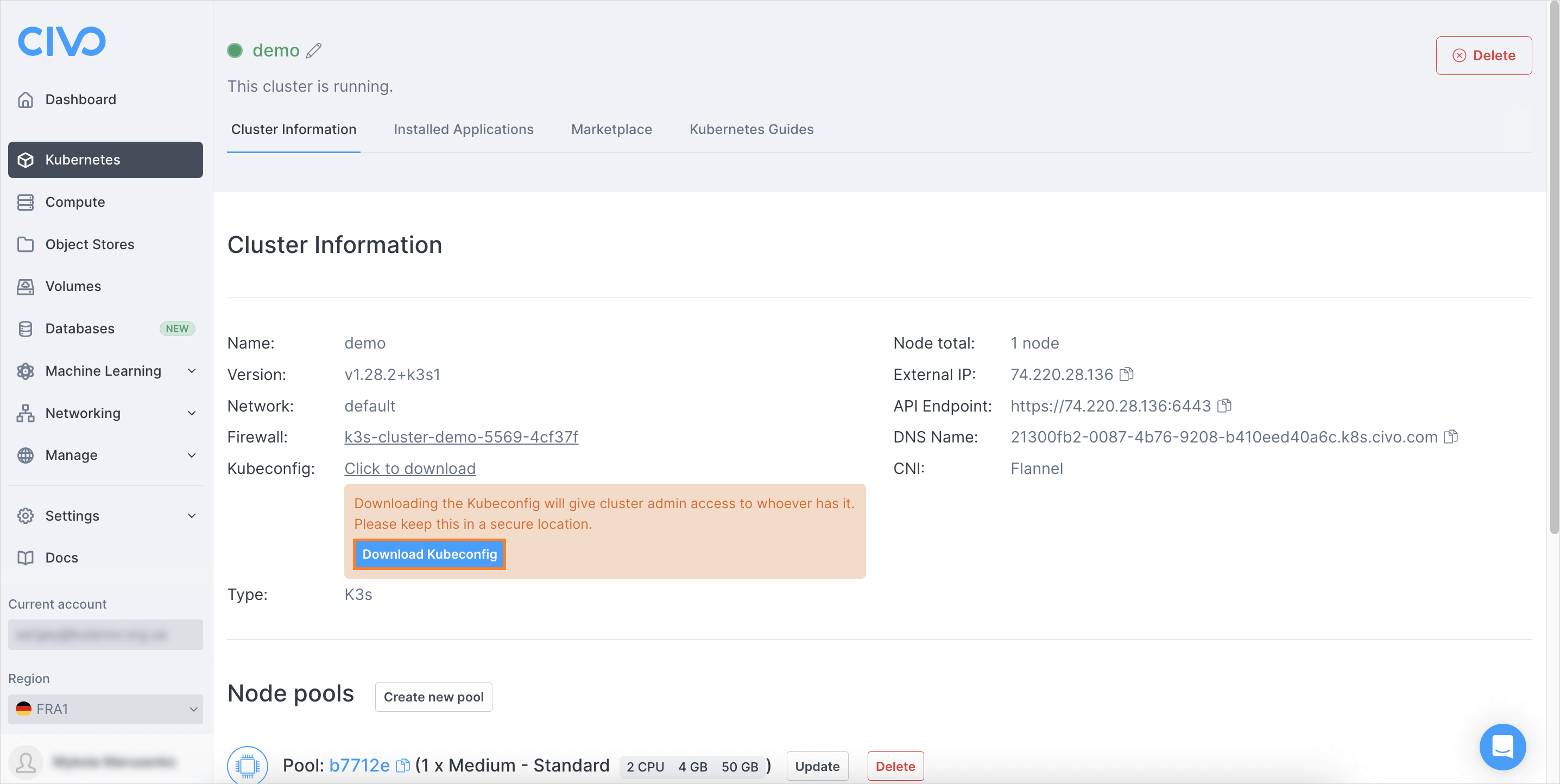
Download and apply the kubeconfig file:
-
Ensure all the pods are up and running in both the Tekton and Argo CD namespaces after 5 minutes of waiting. Restart deployments if the pods are failed to deploy:
kubectl get nskubectl get pods -n tekton-pipelineskubectl get pods -n argocd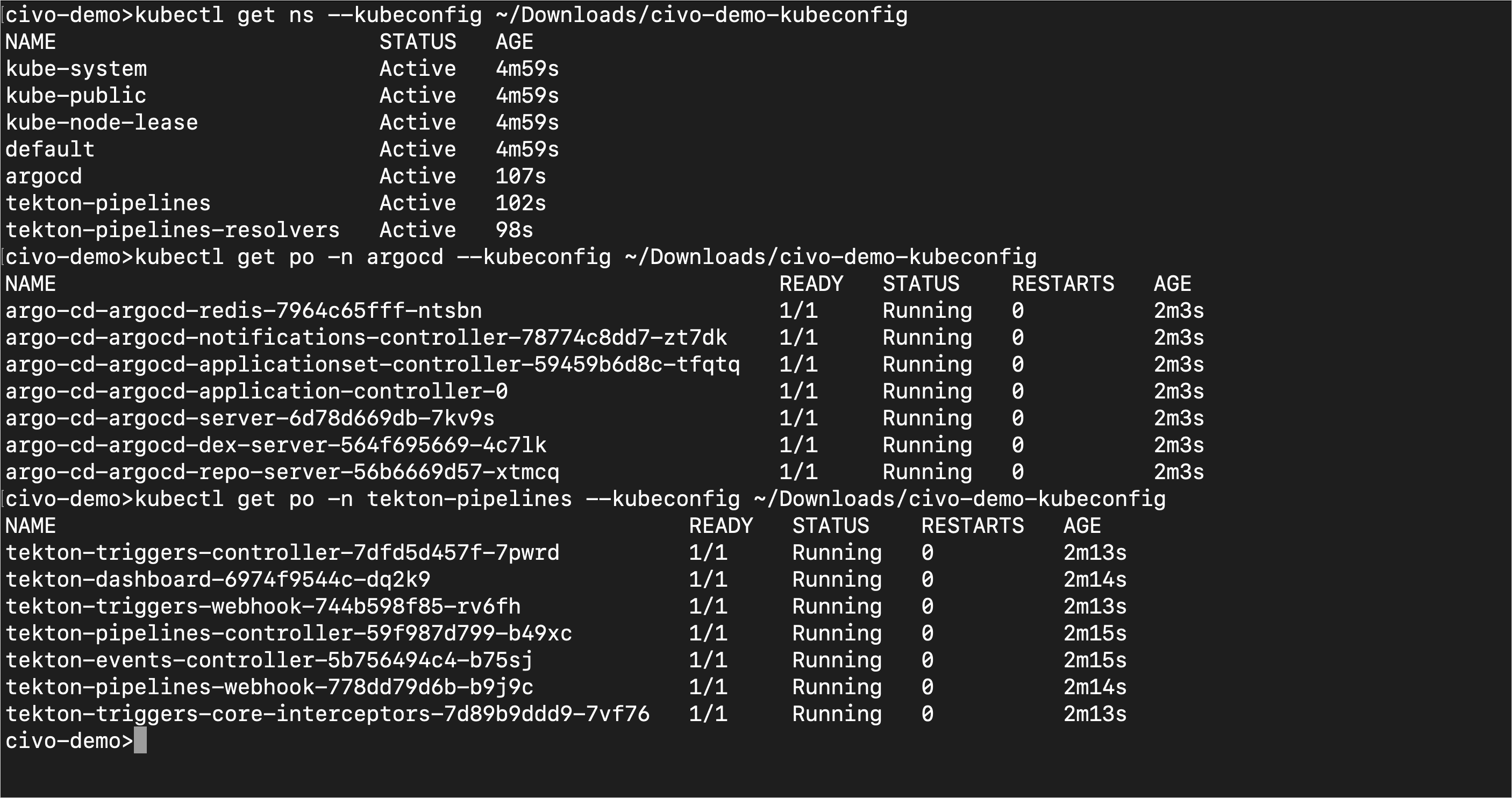
Install KubeRocketCI
As soon as the cluster is deployed, it is time to install the KubeRocketCI application.
-
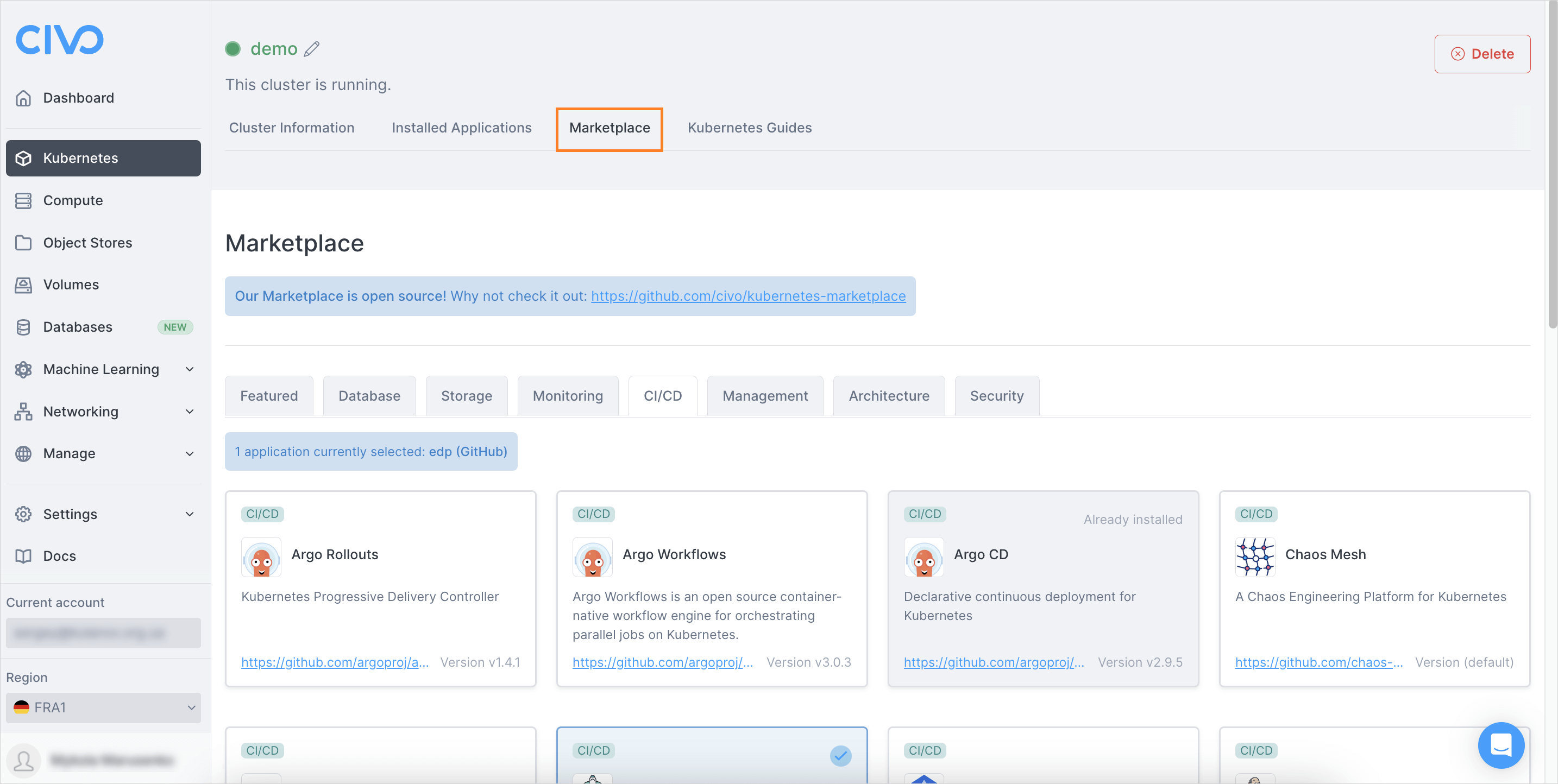
In the Civo portal, navigate to Marketplace -> CI/CD:
-
Select
KubeRocketCIand choose which Version Control Systems you would prefer to integrate it with and click the Install Apps button: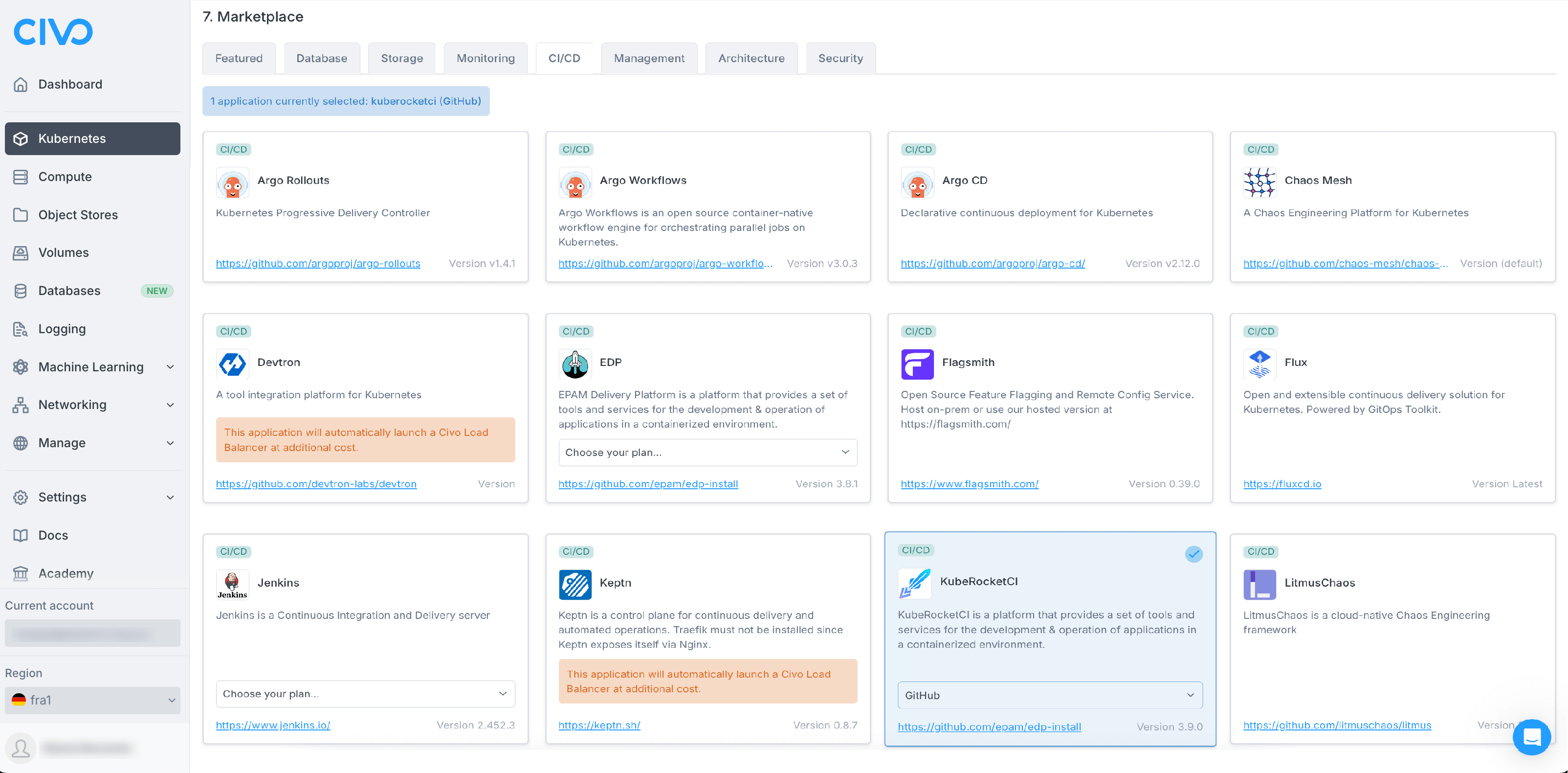
-
Wait till the KubeRocketCI app appears in the Installed applications list:
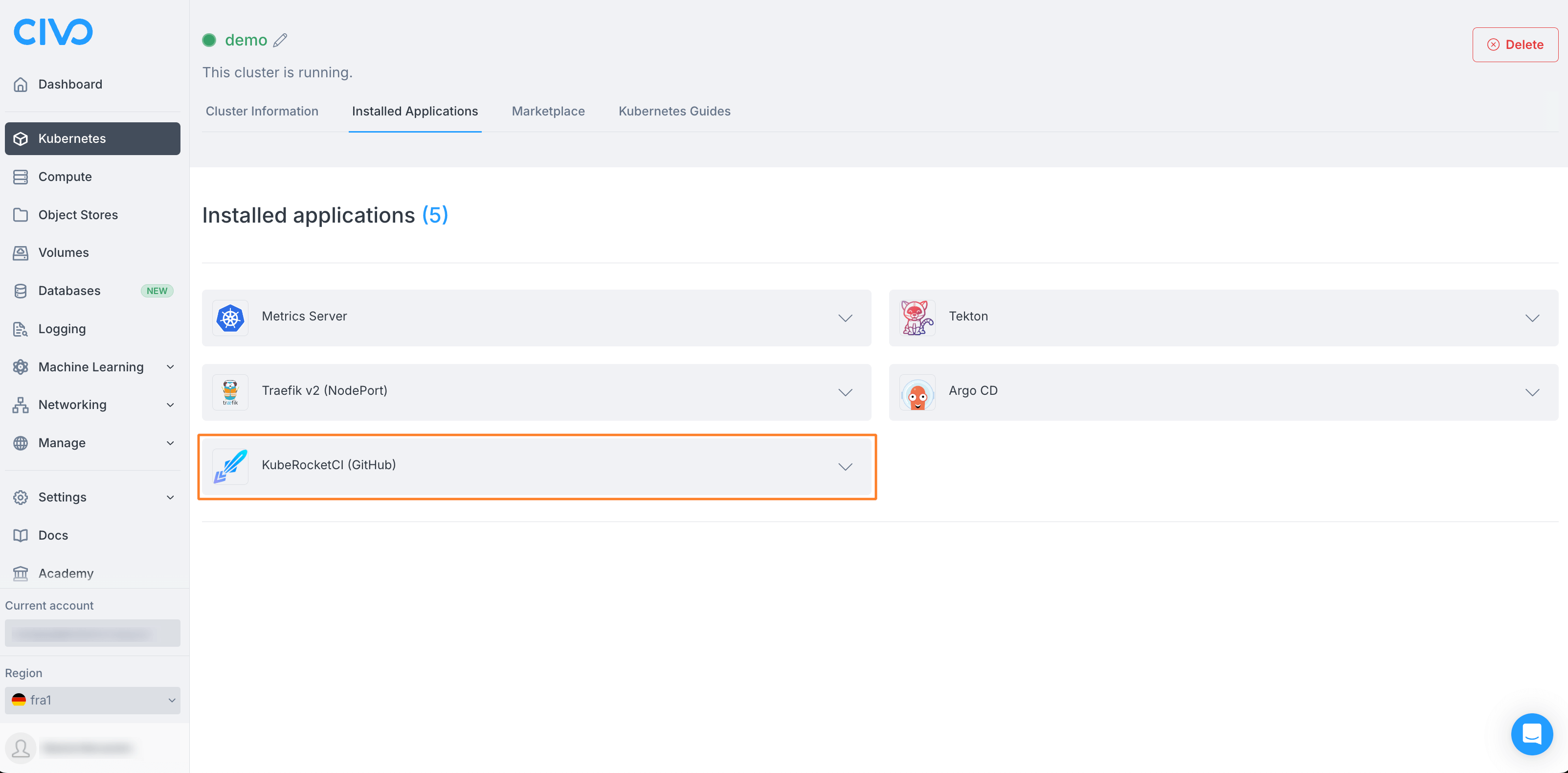
-
Wait till all the pods are up and running. Use the
kubectl get podscommand to check the status of the pods:kubectl get pods -n krci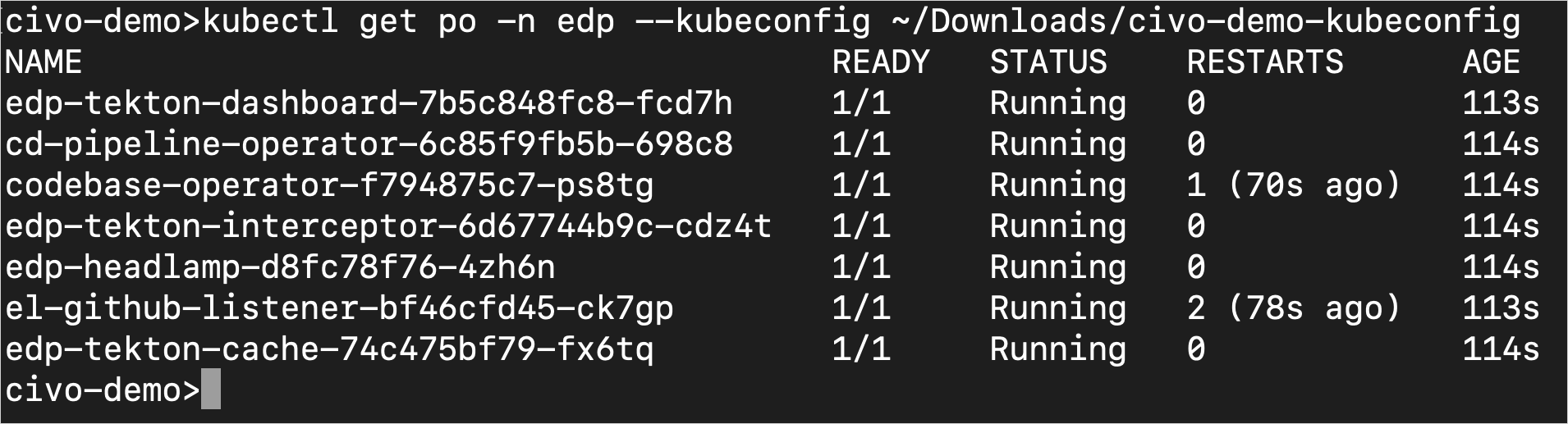
-
As soon as all the pods are deployed. Navigate to the Cluster Information tab and copy the DNS name:
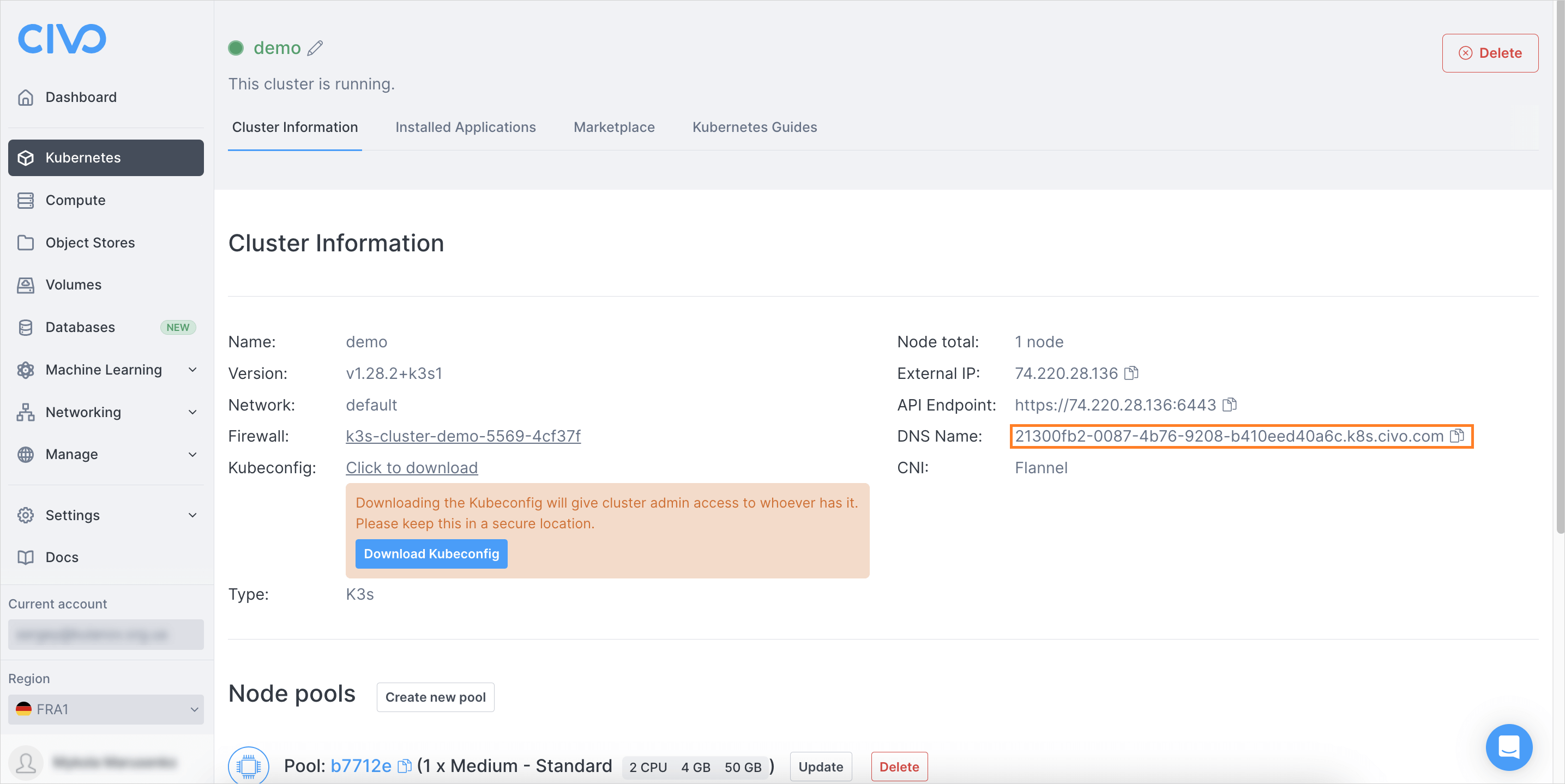
-
In the new browser tab, access the KubeRocketCI portal by typing the URL according to the
https://krci-portal.<DNS_name>format.noteYou can find the exact portal URL in the krci-portal deployment details.
-
Create the edp-admin service account and generate an access token to open the KubeRocketCI:
kubectl -n krci create serviceaccount edp-adminkubectl create clusterrolebinding edp-admin --serviceaccount=krci:edp-admin --clusterrole=cluster-adminkubectl create token edp-admin -n krci -
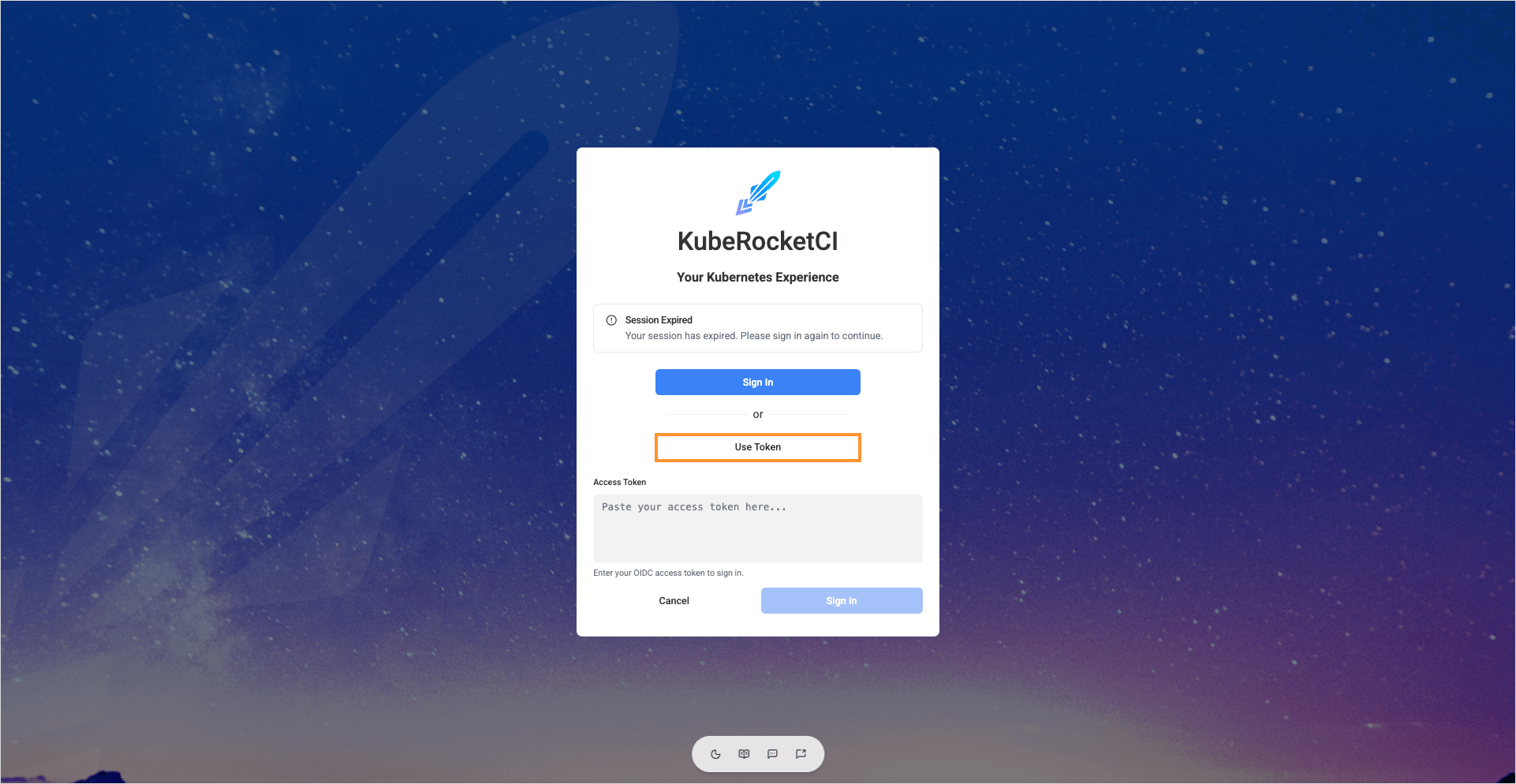
In the login menu, paste the generated token in the Access token field and click the Sign in button.
-
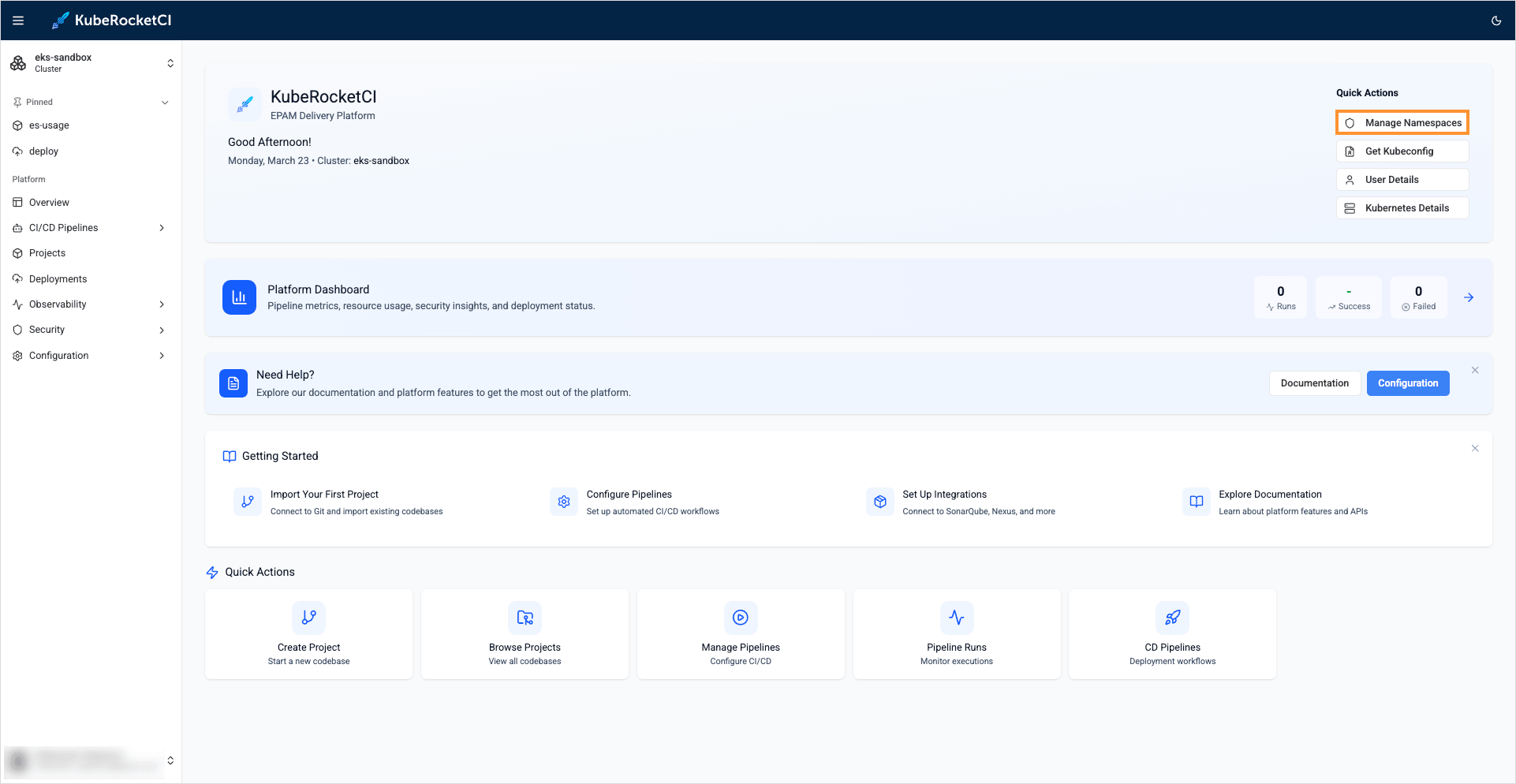
Upon logging in, open the namespaces window by clicking the Manage Namespaces button in the top right corner of the UI:
-
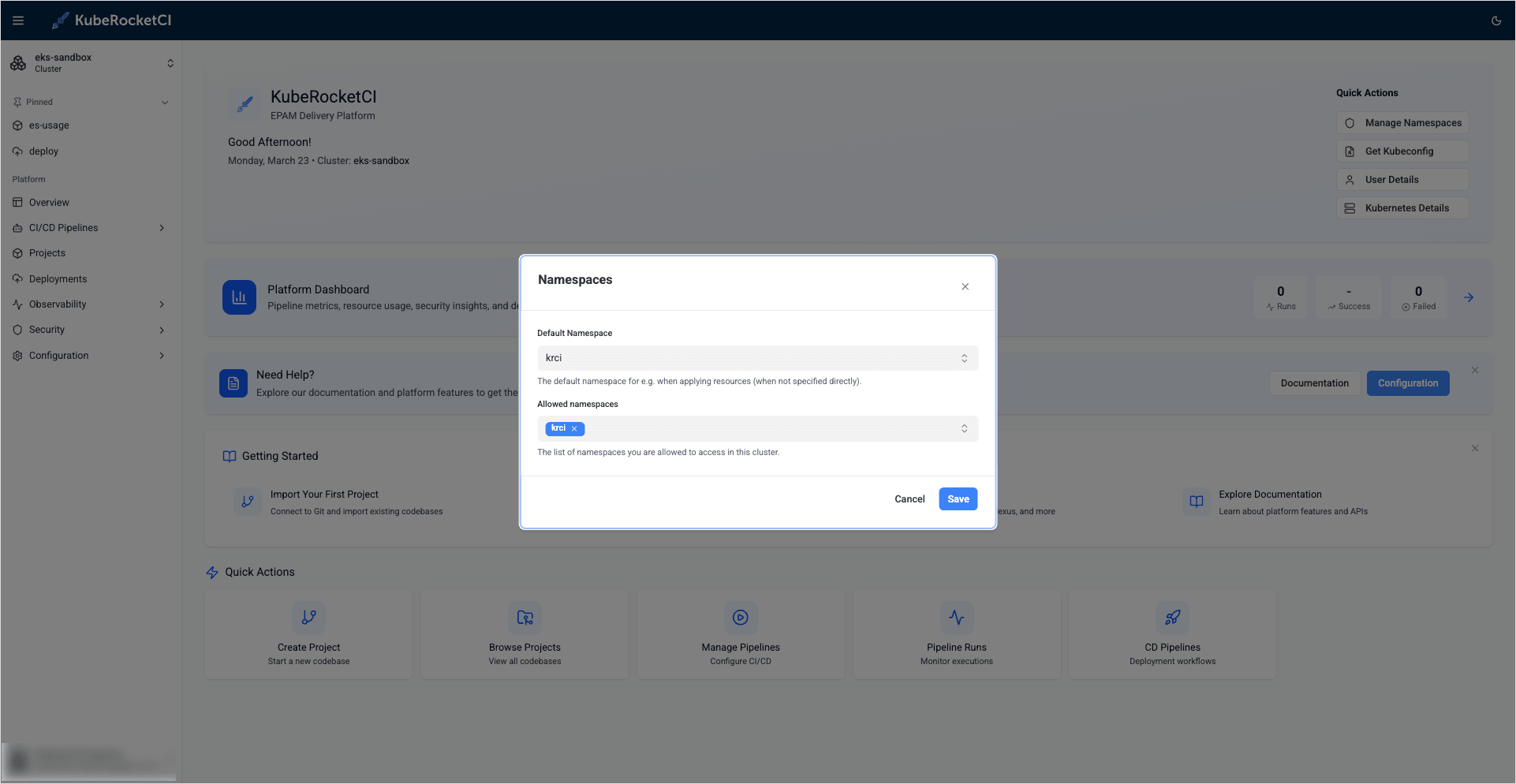
Ensure the
krcinamespace is specified in both default and allowed namespaces. If not, define them manually:- Default namespace:
krci - Allowed namespaces:
krci
 note
noteRemember to press Enter to add the allowed namespace to the list.
- Default namespace:
Well done! You've successfully installed the KubeRocketCI platform on the Civo cluster. You're now set to integrate KubeRocketCI with the necessary third-party tools. Proceed to the SonarQube Integration page.