Scaffold and Deploy FastAPI Application
This use case outlines the process of creating and deploying a FastAPI application using KubeRocketCI. The purpose is to provide developers with a streamlined approach to generate a functional code structure for a FastAPI web application, including basic read functionality. The process also allows for customization to meet specific requirements and deployment to a development environment. By utilizing a standardized process for code review, testing, and deployment, developers can save time and effort while ensuring high code quality and reliability. The goal is to empower the development team to release new features and applications more efficiently, while maintaining a high level of code quality and reliability. The KubeRocketCI is used to facilitate this process.
Roles
This documentation is tailored for the Developers and Team Leads.
Goals
- Create a new FastAPI application quickly.
- Deploy the initial code to the DEV environment.
- Check CI pipelines.
- Delivery update using the GitOps approach.
Preconditions
- KubeRocketCI instance is configured with GitOps repo.
- Developer has access to the KubeRocketCI instances using the Single-Sign-On approach.
- Developer has merge permissions in the GitOps repository on GitHub.
Scenario
To scaffold and deploy FastAPI Application, follow the steps below.
Scaffold the New FastAPI Application
-
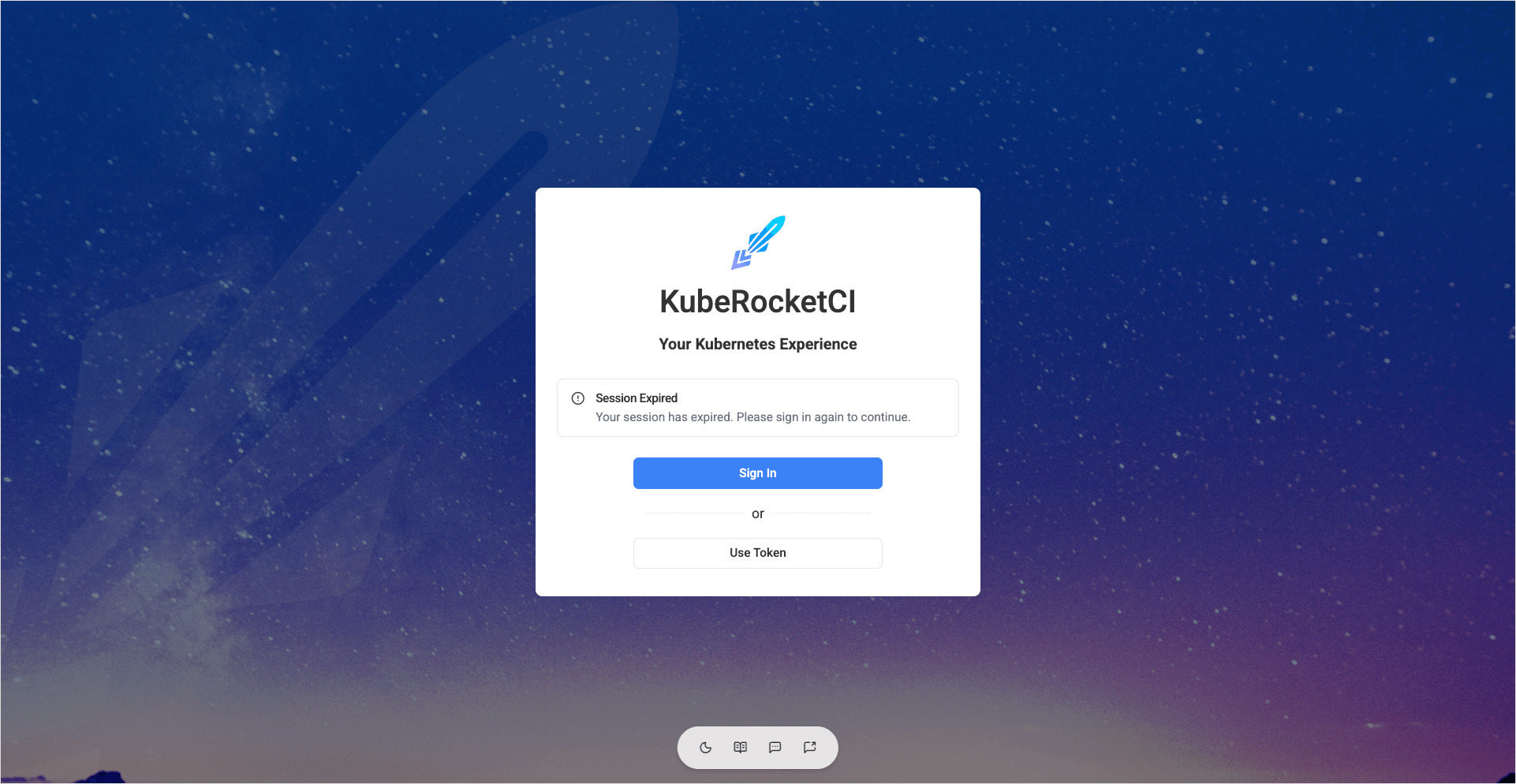
Log in to the KubeRocketCI portal:
-
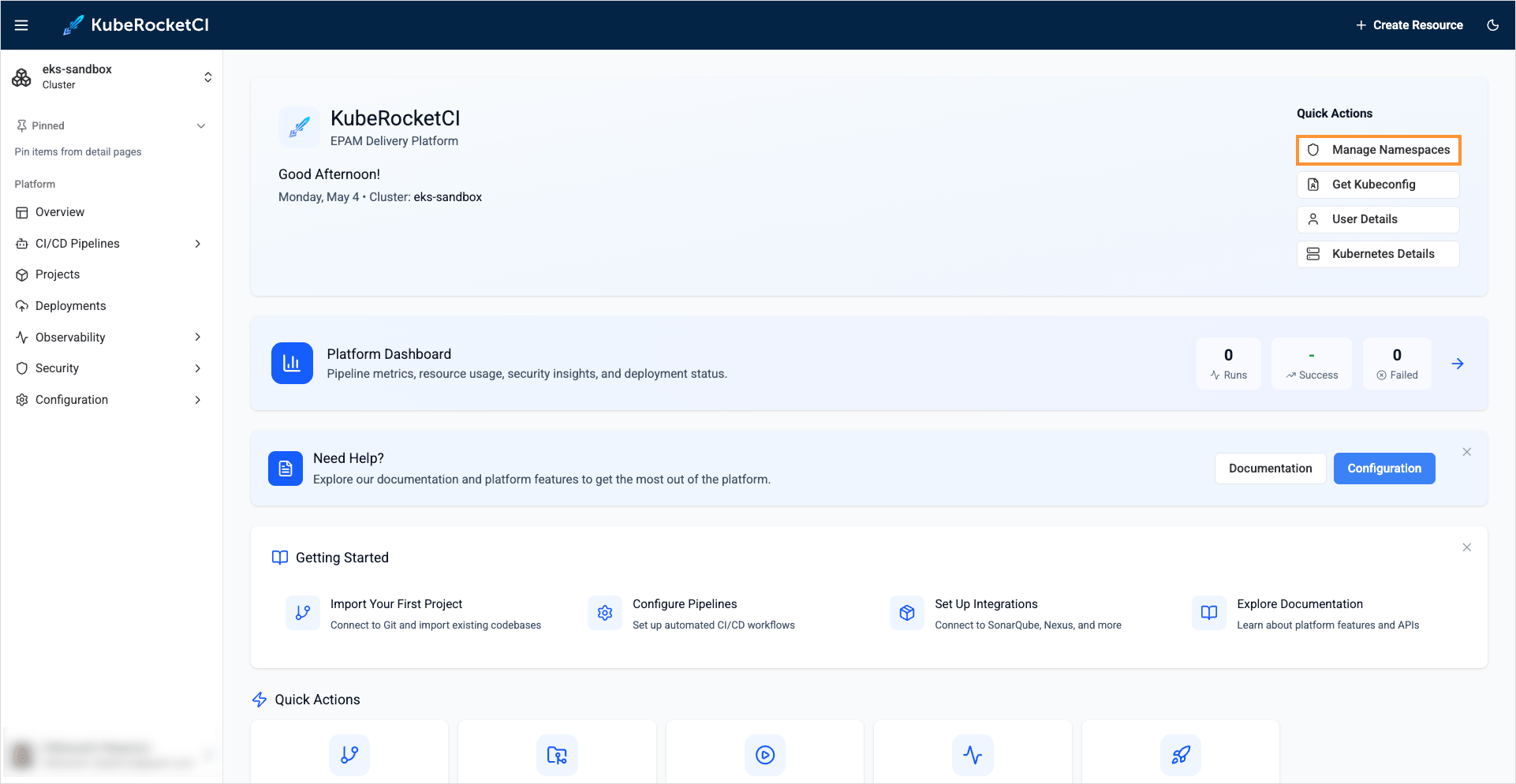
On the main menu, click the Manage Namespaces button:
-
Ensure the
Namespacevalue points to the namespace with the KubeRocketCI installation: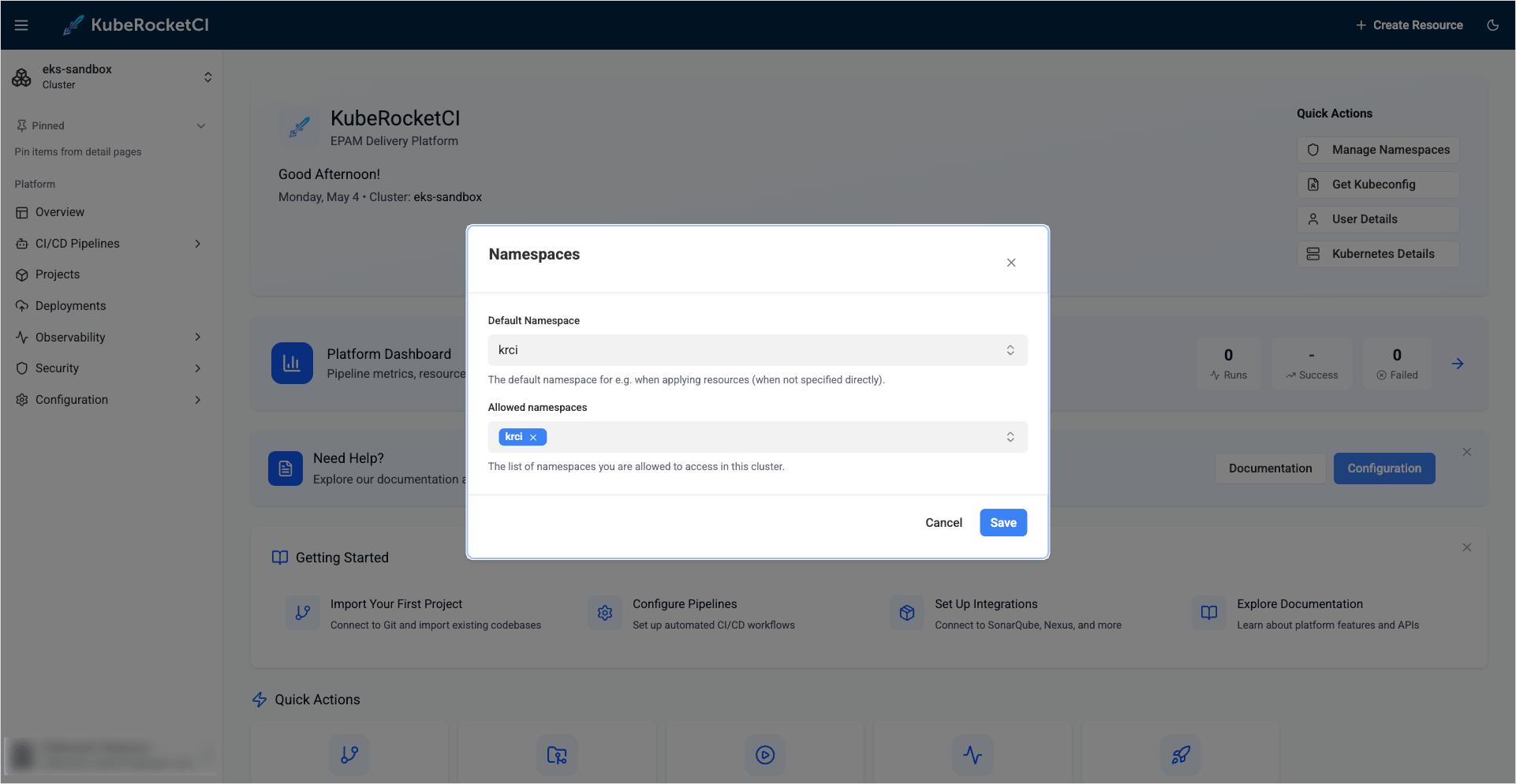 note
noteDon't forget to press Enter to add the namespace to the allowed namespaces list.
-
Create a new Project with the
Applicationtype using theCreatestrategy. Select the Projects section and click + Create project: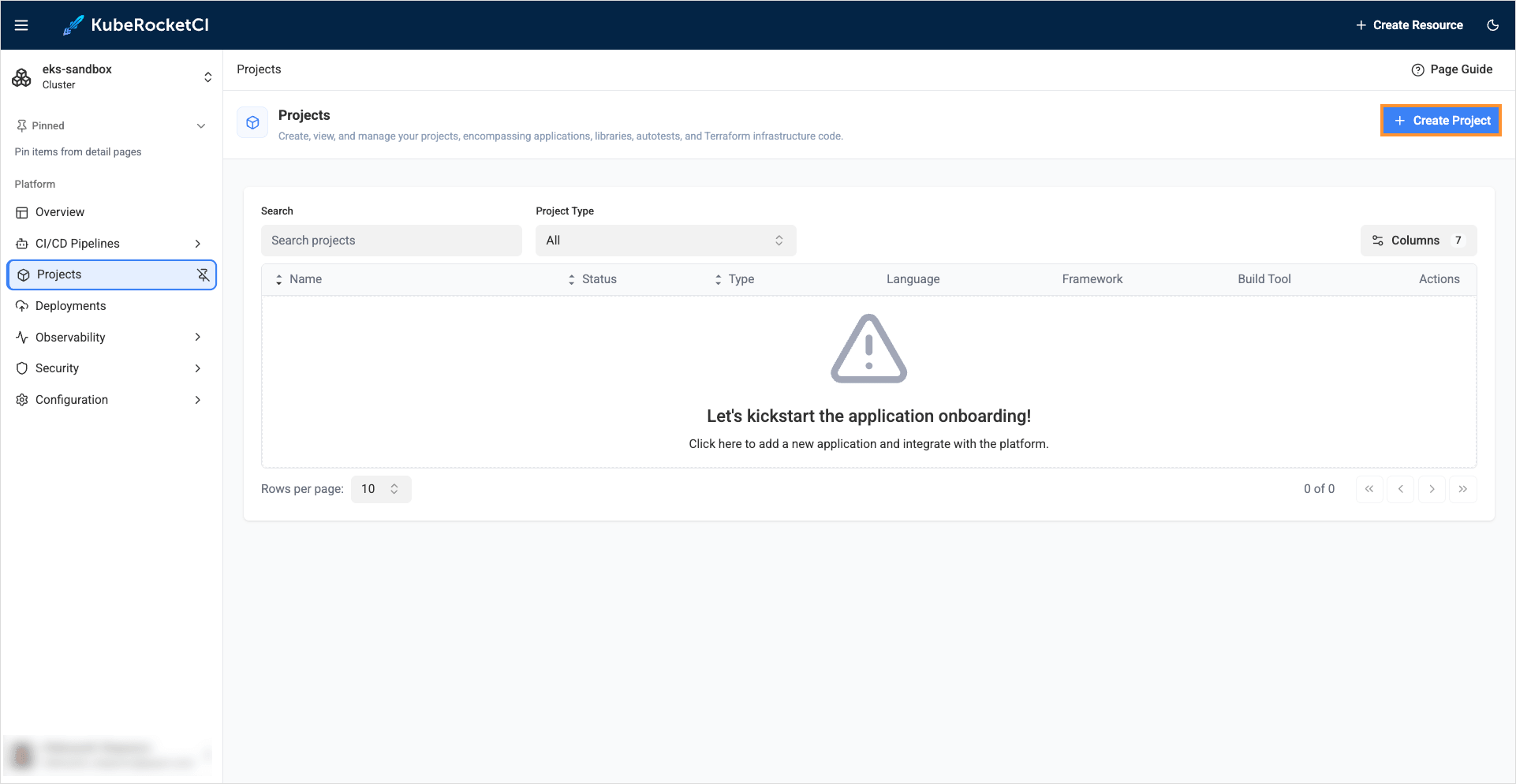
-
Select the Custom configuration option, choose the
ApplicationCodebase type as we intend to deliver our application as a container and deploy it within the Kubernetes cluster. Select the Create strategy to scaffold our application from the template provided by the KubeRocketCI and click Continue: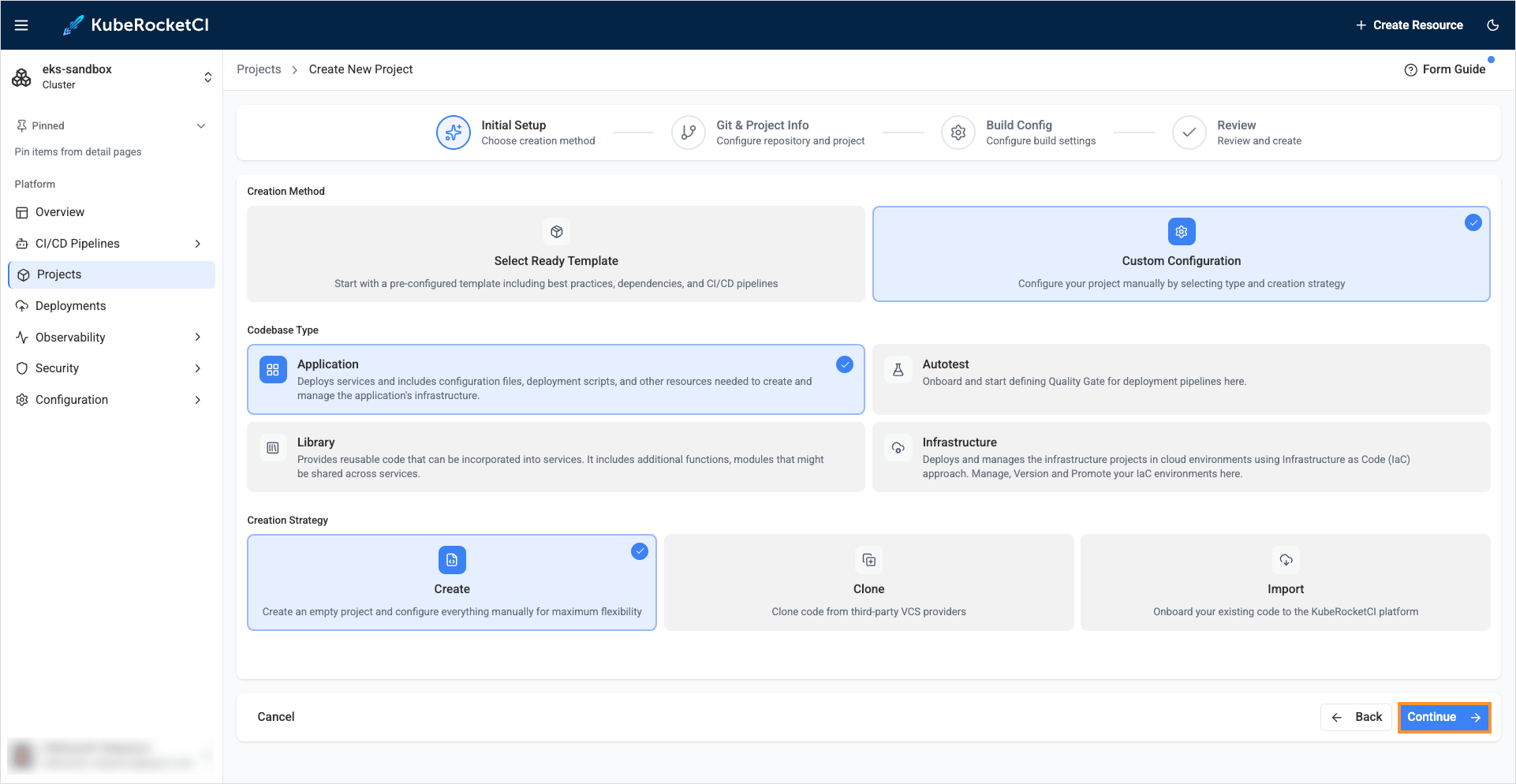
-
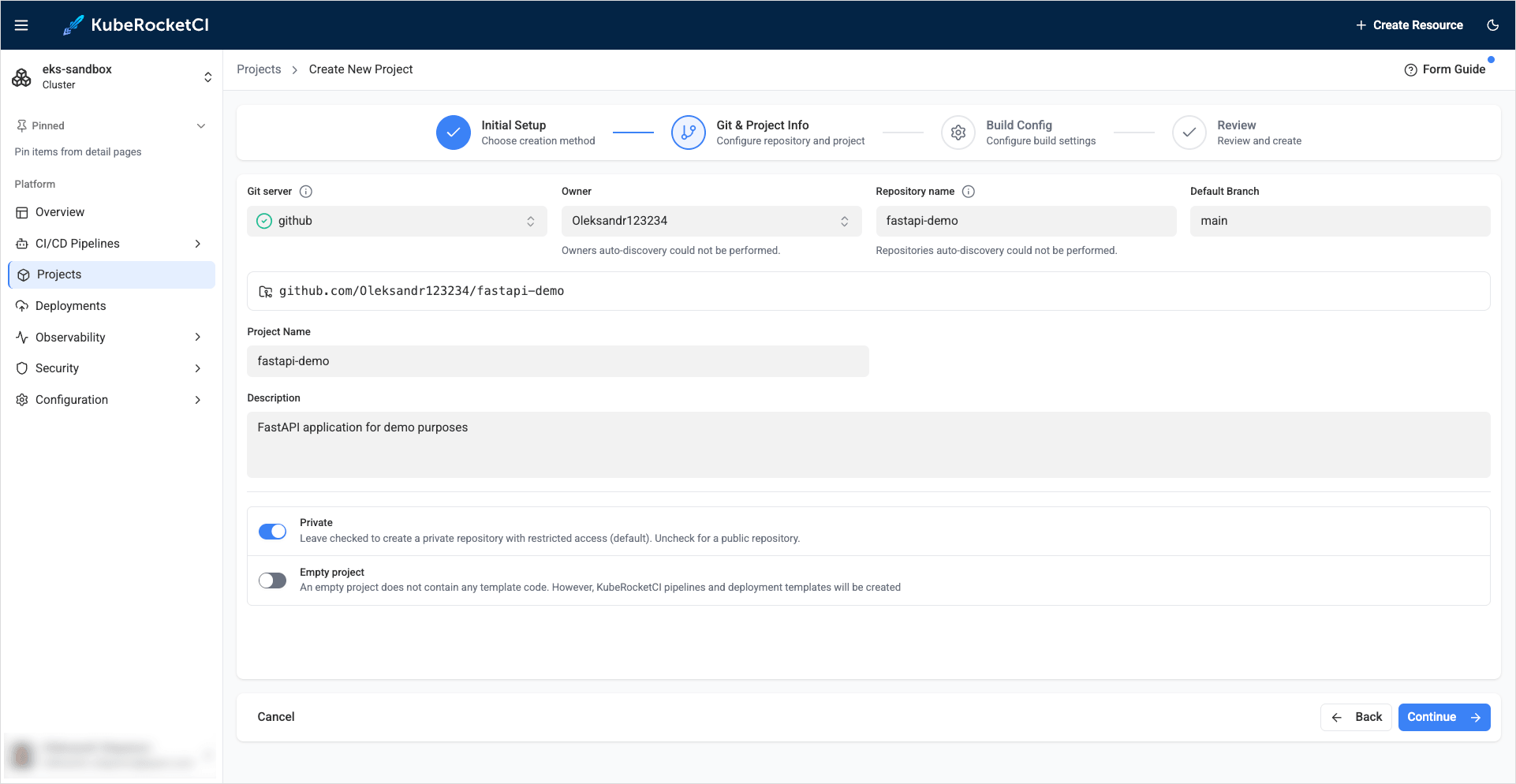
On the Git & project info tab, define the following values and click Continue:
- Git server:
github - Owner:
github_account_name - Repository name:
fastapi-demo - Default branch:
main - Project name:
fastapi-demo - Description:
FastAPI application for demo purposes
- Git server:
-
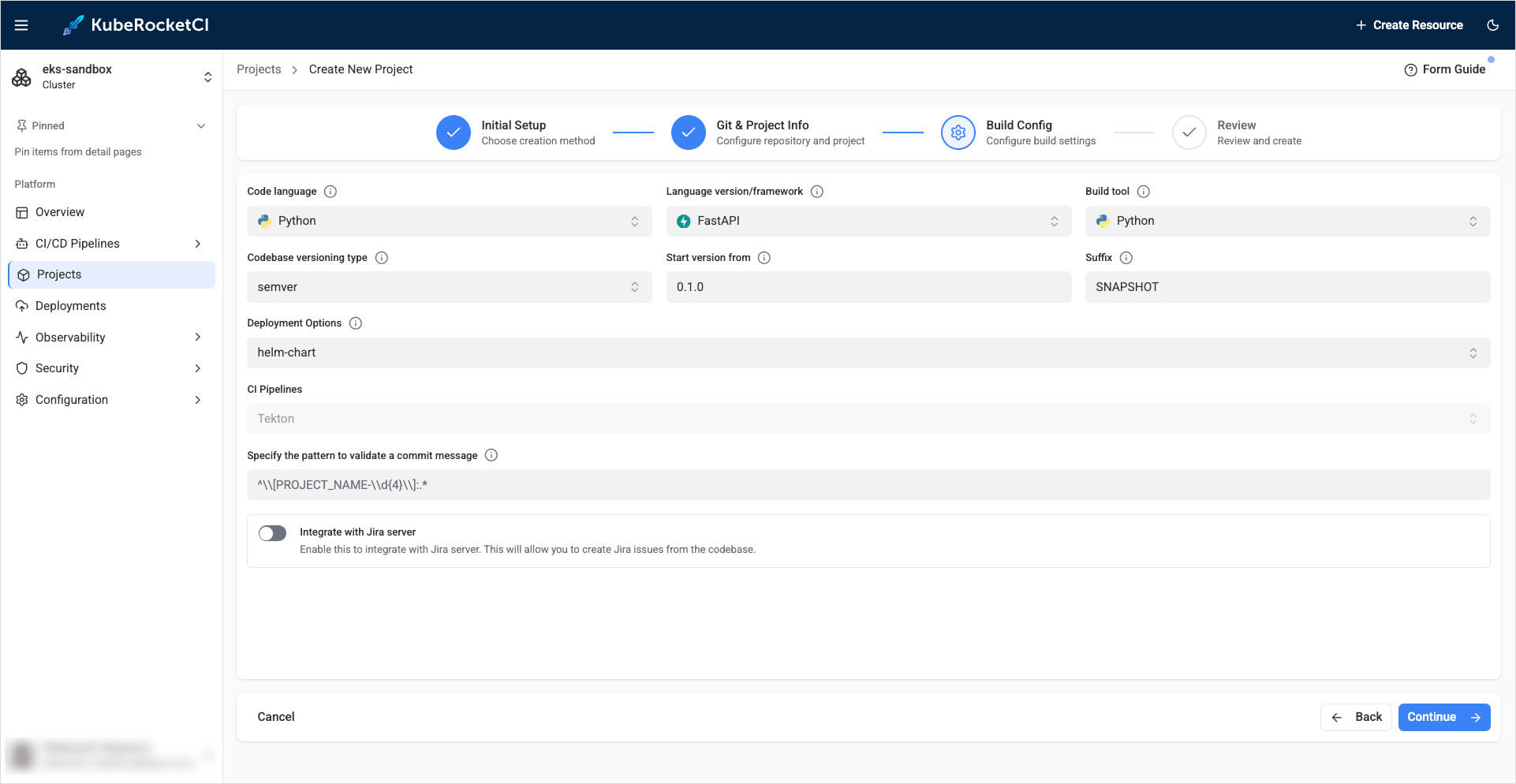
On the Build config tab, define the values and click Continue:
- Code language:
Python - Language version/framework:
FastAPI - Build tool:
Python - Deployment options:
helm-chart - Codebase versioning type:
semver - Start version from:
0.1.0 - Suffix:
SNAPSHOT
- Code language:
-
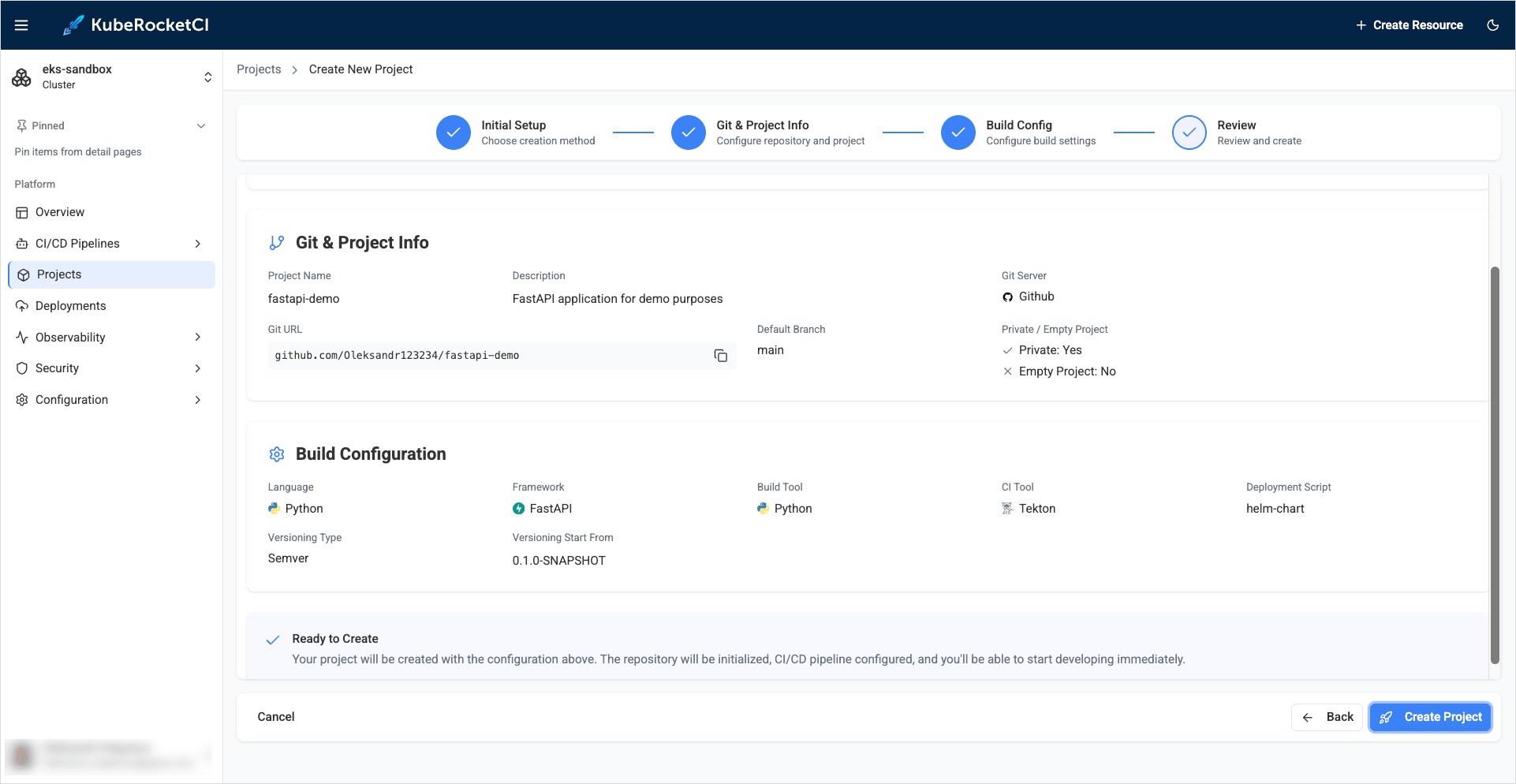
On the Review tab, verify the project configuration and click Create project:
-
On the congratulations menu, click Open project:
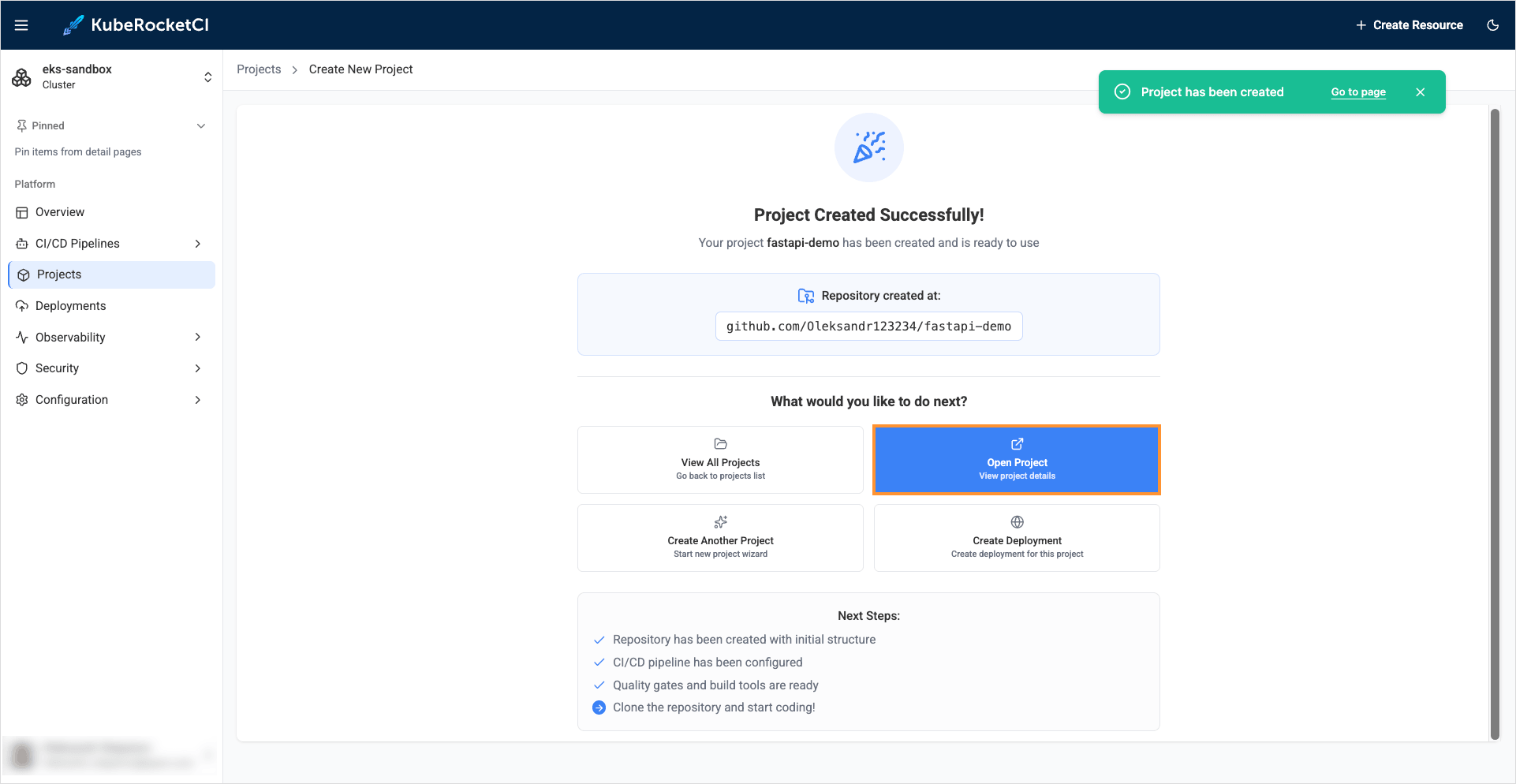
Deploy Application to the Development Environment
This section outlines the approach for deploying the application from the latest commit on the main branch. The following steps are involved:
-
Build the initial version of the application from the last commit on the
mainbranch. This version is generated from the provided template. -
Set up a deployment flow to enable continuous delivery to the development environment.
-
Deploy the initial version of the application to the development environment.
To succeed with the steps above, follow the instructions below:
-
Build Container from the latest branch commit. To build the initial version of the application's
mainbranch, go to the Branches -> main and click the Build button: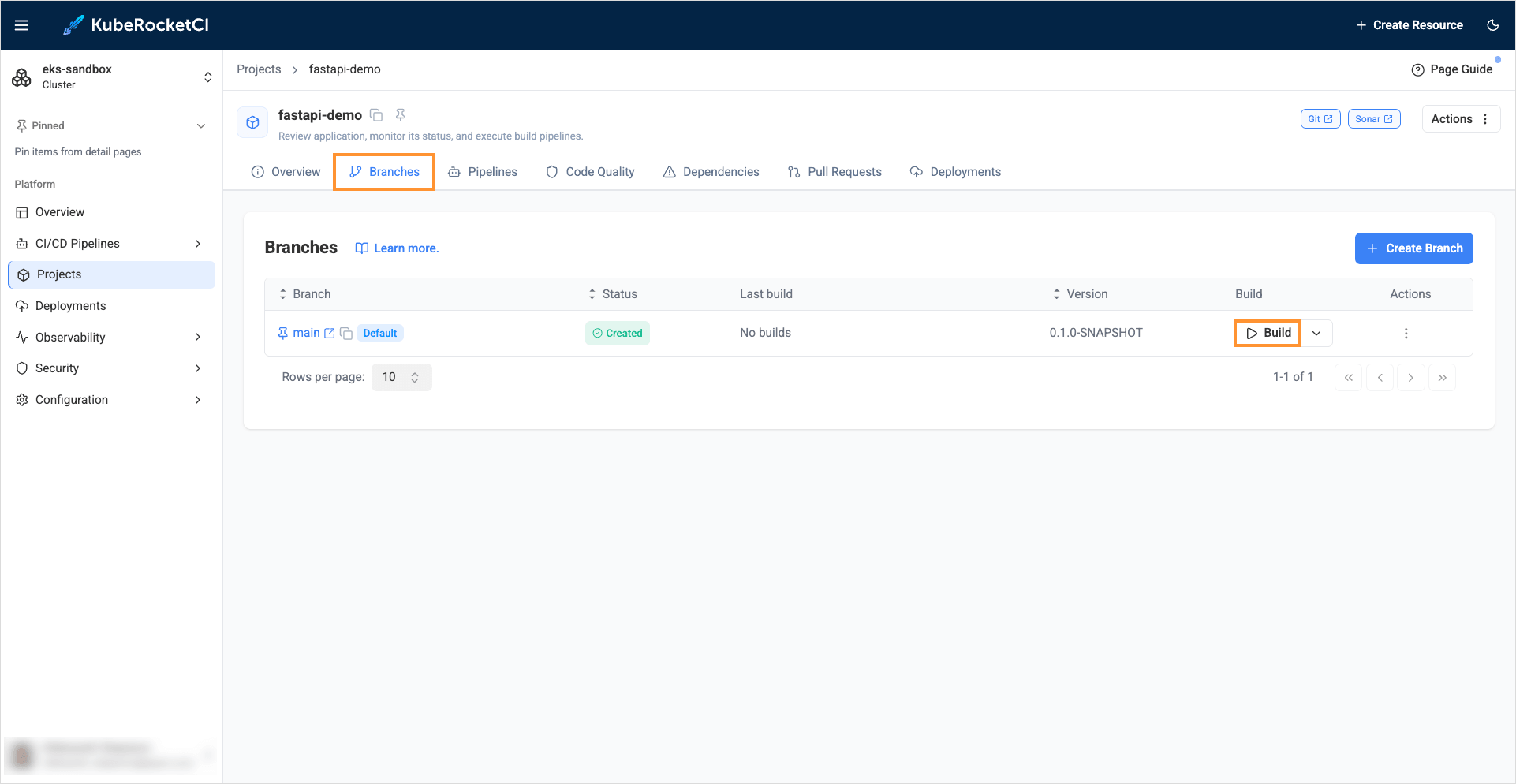
-
Build pipeline for the
fastapi-demoapplication starts. Track Pipeline's status by clicking the build-fastapi-demo-main-xxxx pipeline link or Go to page: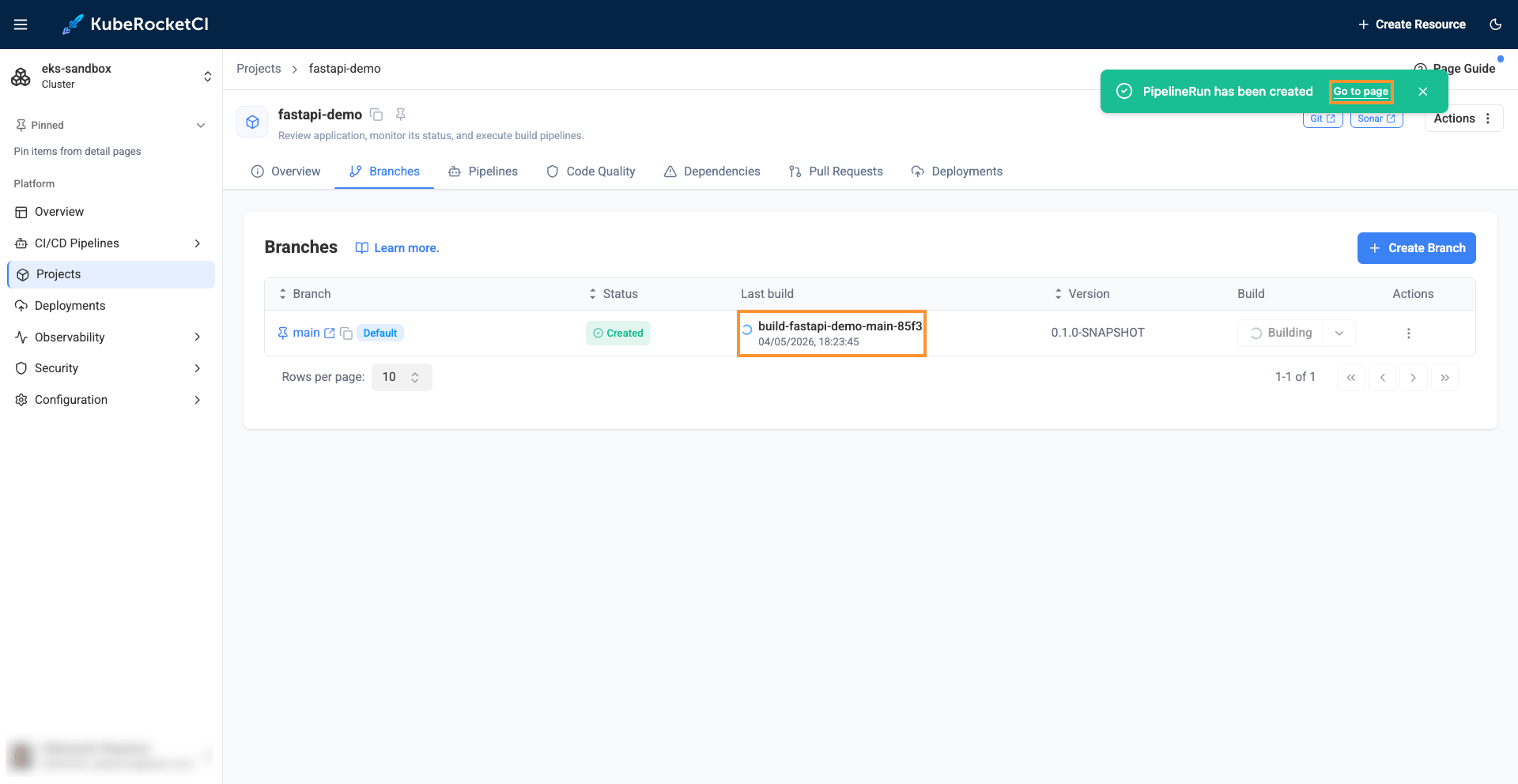
-
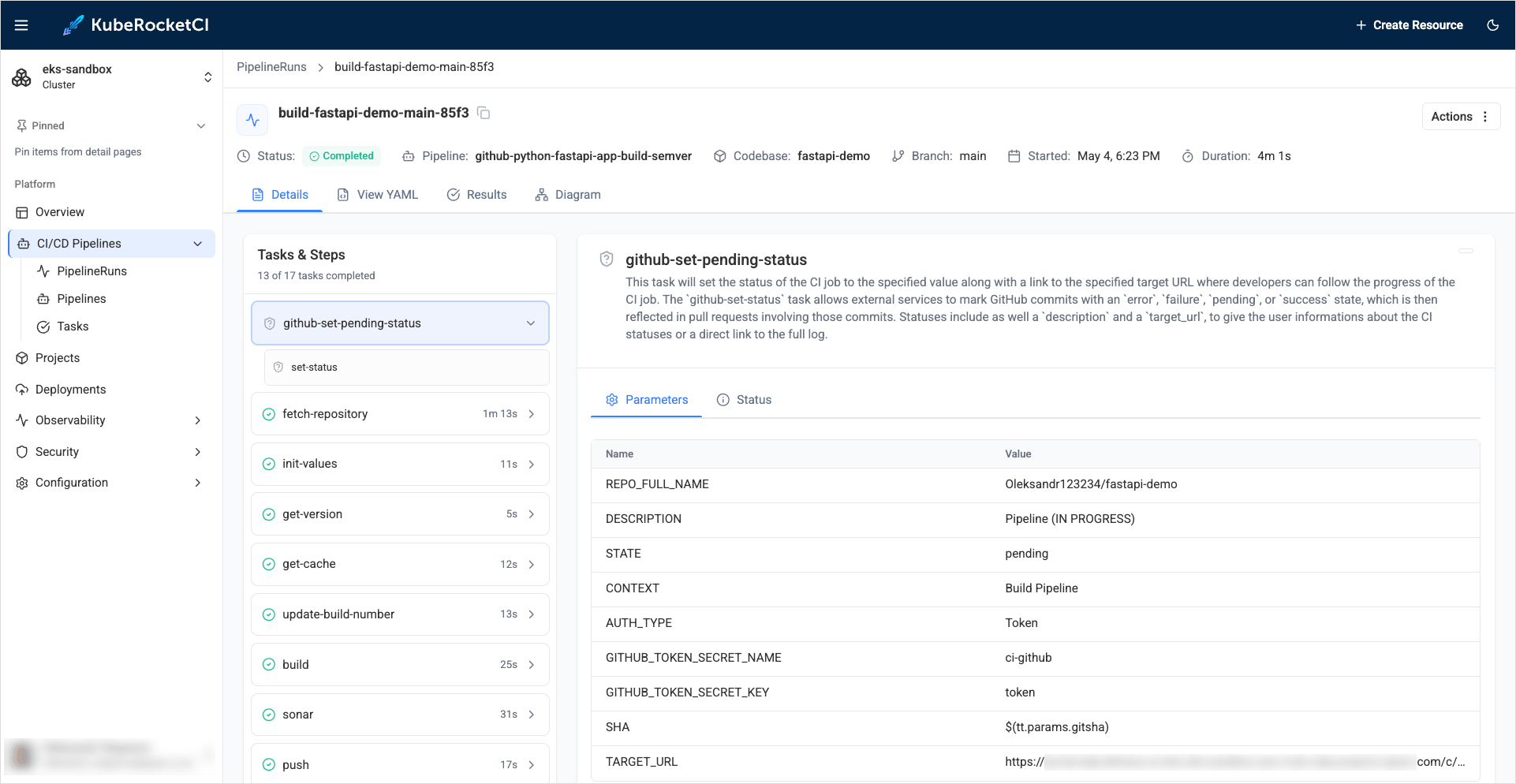
Observe the build pipeline details:
-
Ensure that build pipeline was successfully completed.
-
To enable application deployment, create a Deployment with a single environment - Development (with the name
dev).noteTo utilize and manage various environments through the KubeRocketCI platform, the initial step is to onboard a new GitOps repository.
-
Navigate to the Deployments tab and click the corresponding button to create new GitOps repository:
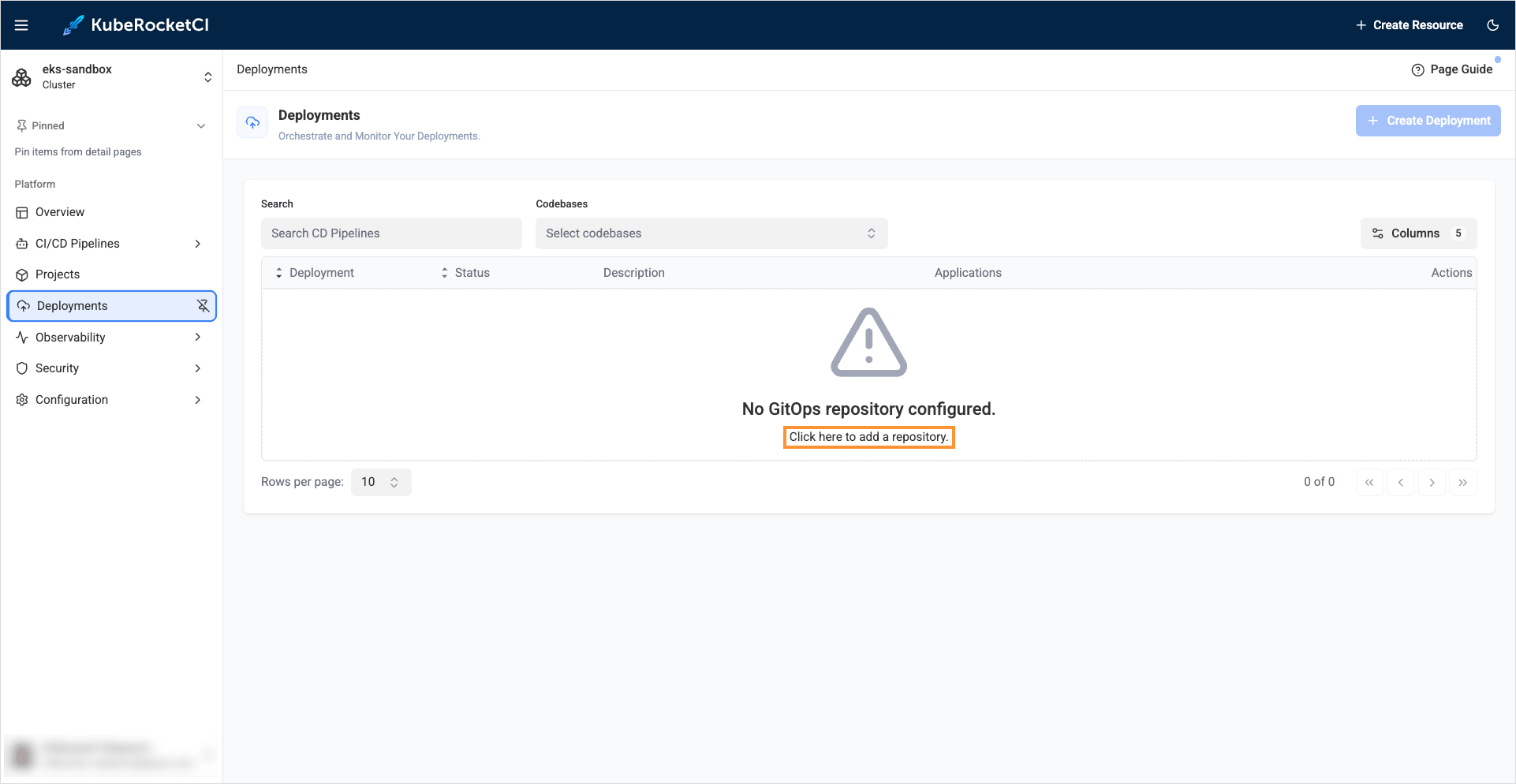
-
Click to the + Add GitOps repository:
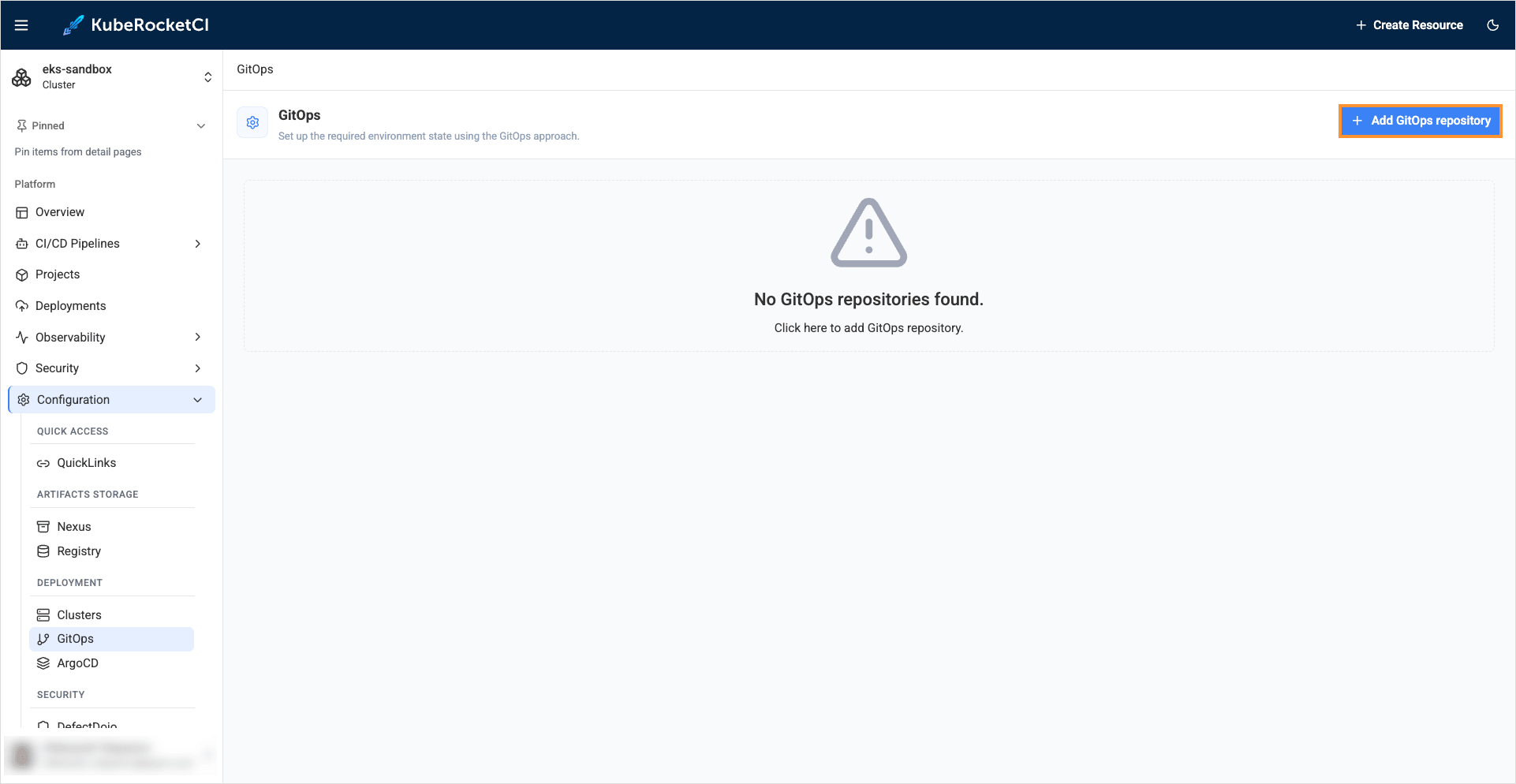
-
Select the
Createstrategy andgithubserver, enter GitHub account name and click Save: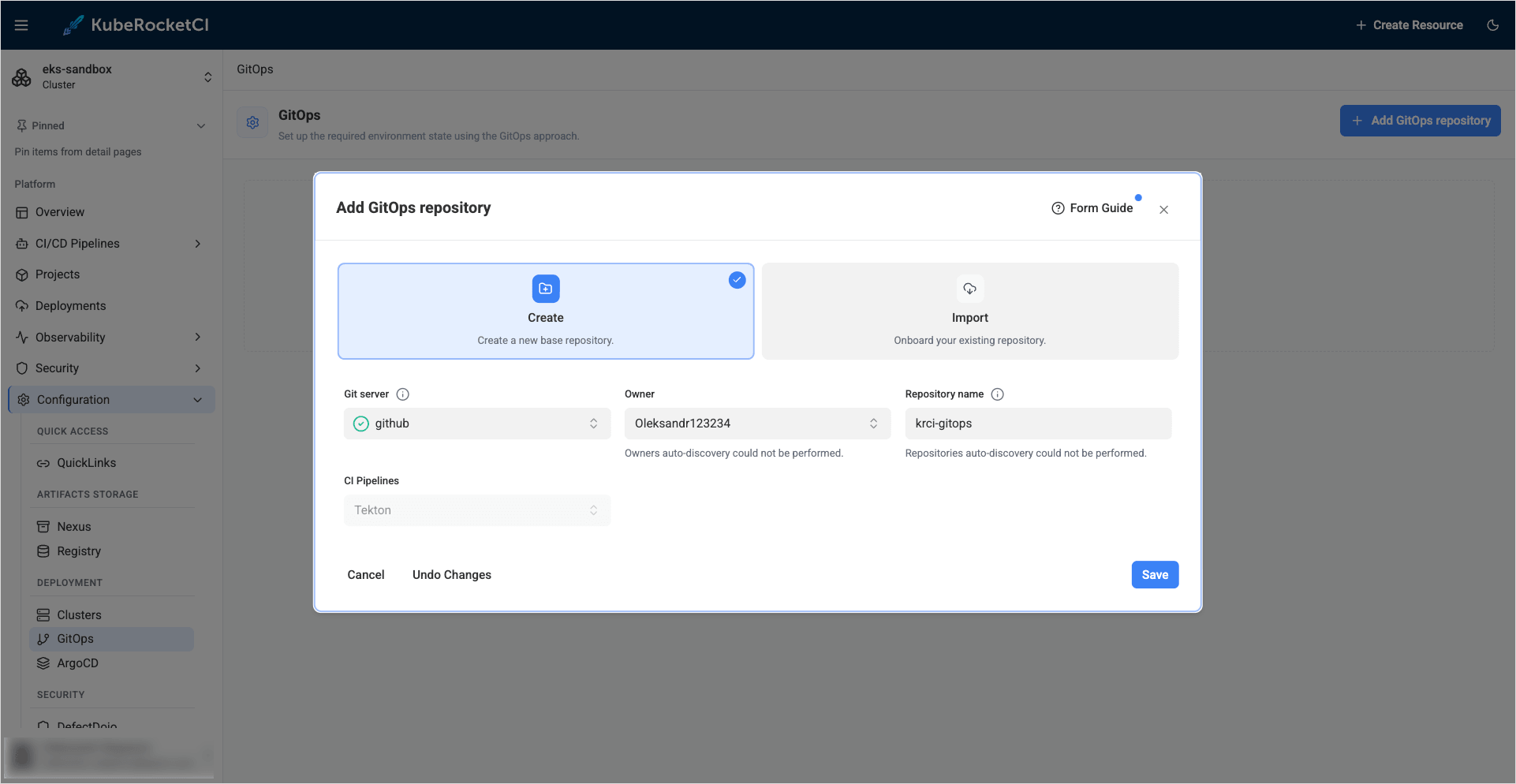
-
In the KubeRocketCI portal, navigate to Deployments tab and click the + Create deployment button:
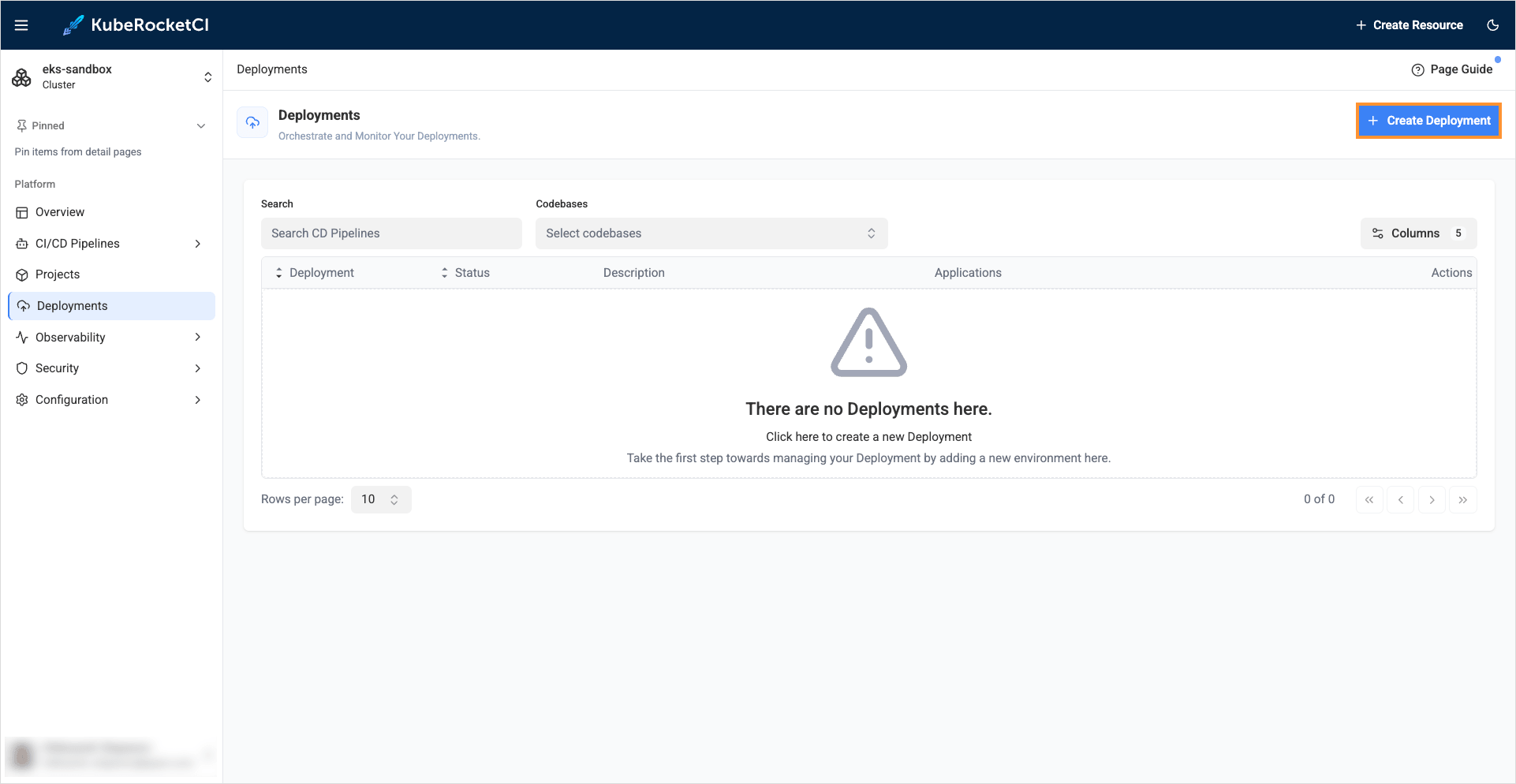
-
In the Create new deployment dialog, fill in the required fields:
-
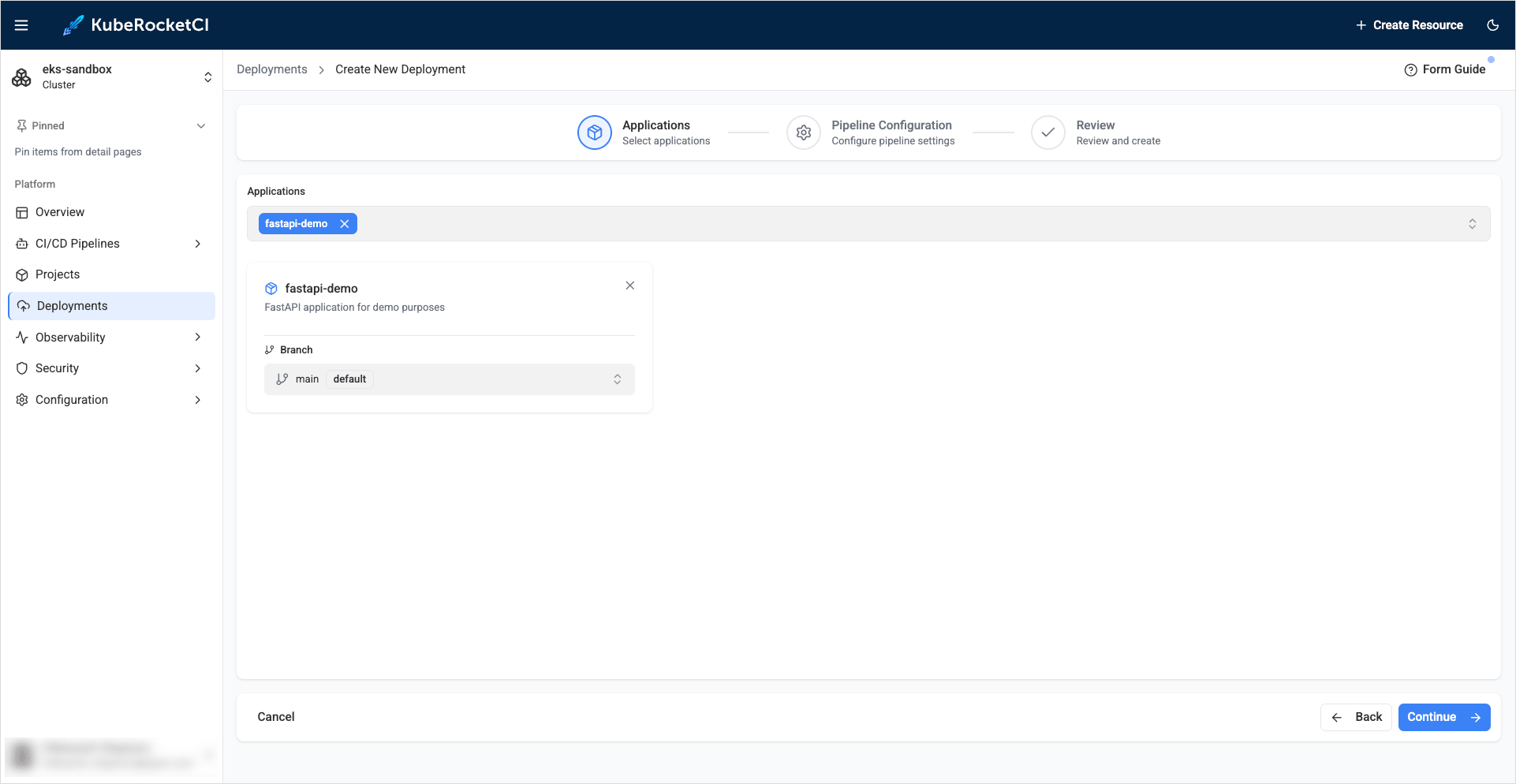
Applications:
- Applications: Add
fastapi-demoapplication - Branch: Select
mainbranch
- Applications: Add
-
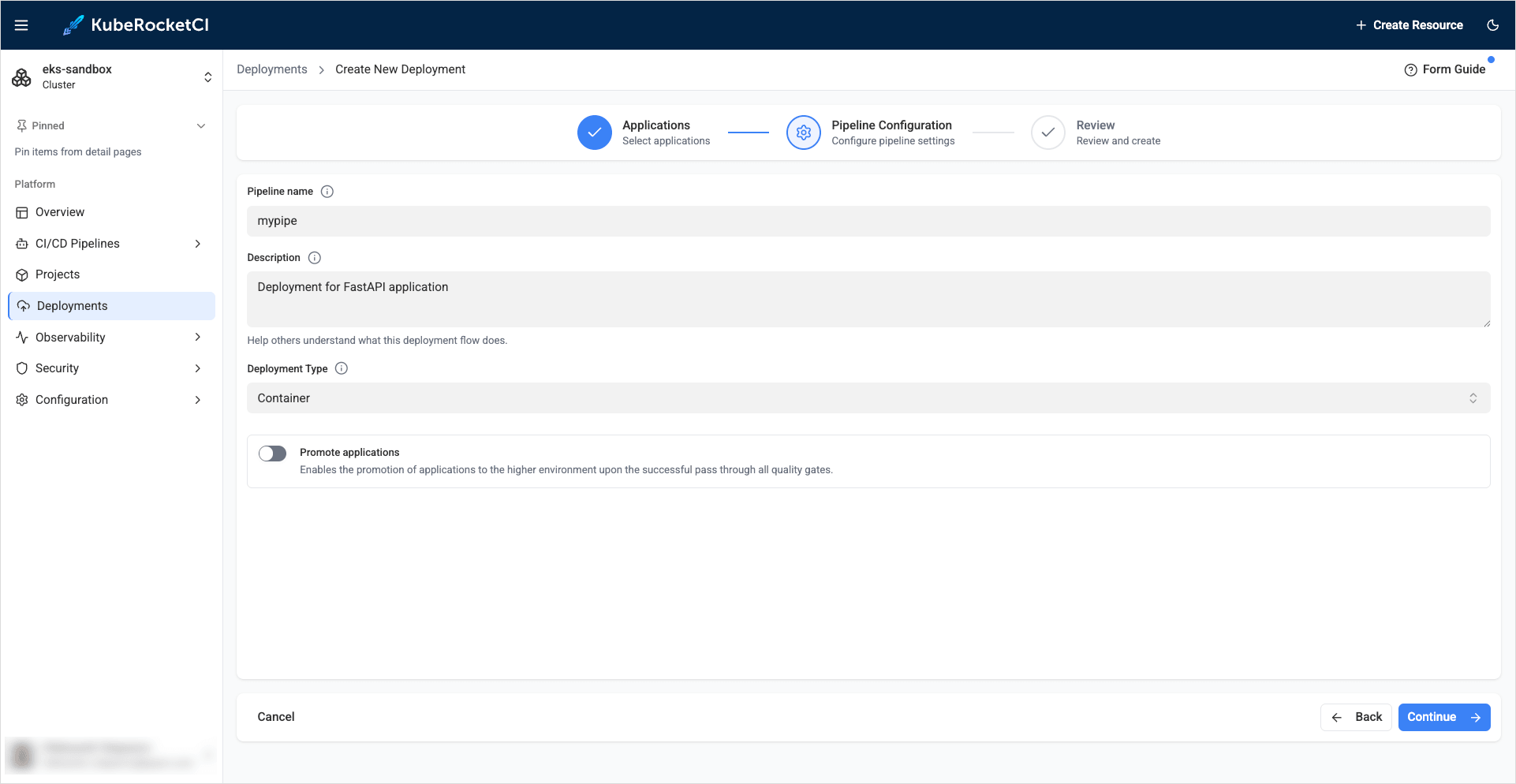
Pipeline configuration:
- Pipeline name:
mypipe - Description:
Deployment for FastAPI application - Deployment type: Select
Container - Promote applications: Leave unchecked
- Pipeline name:
-
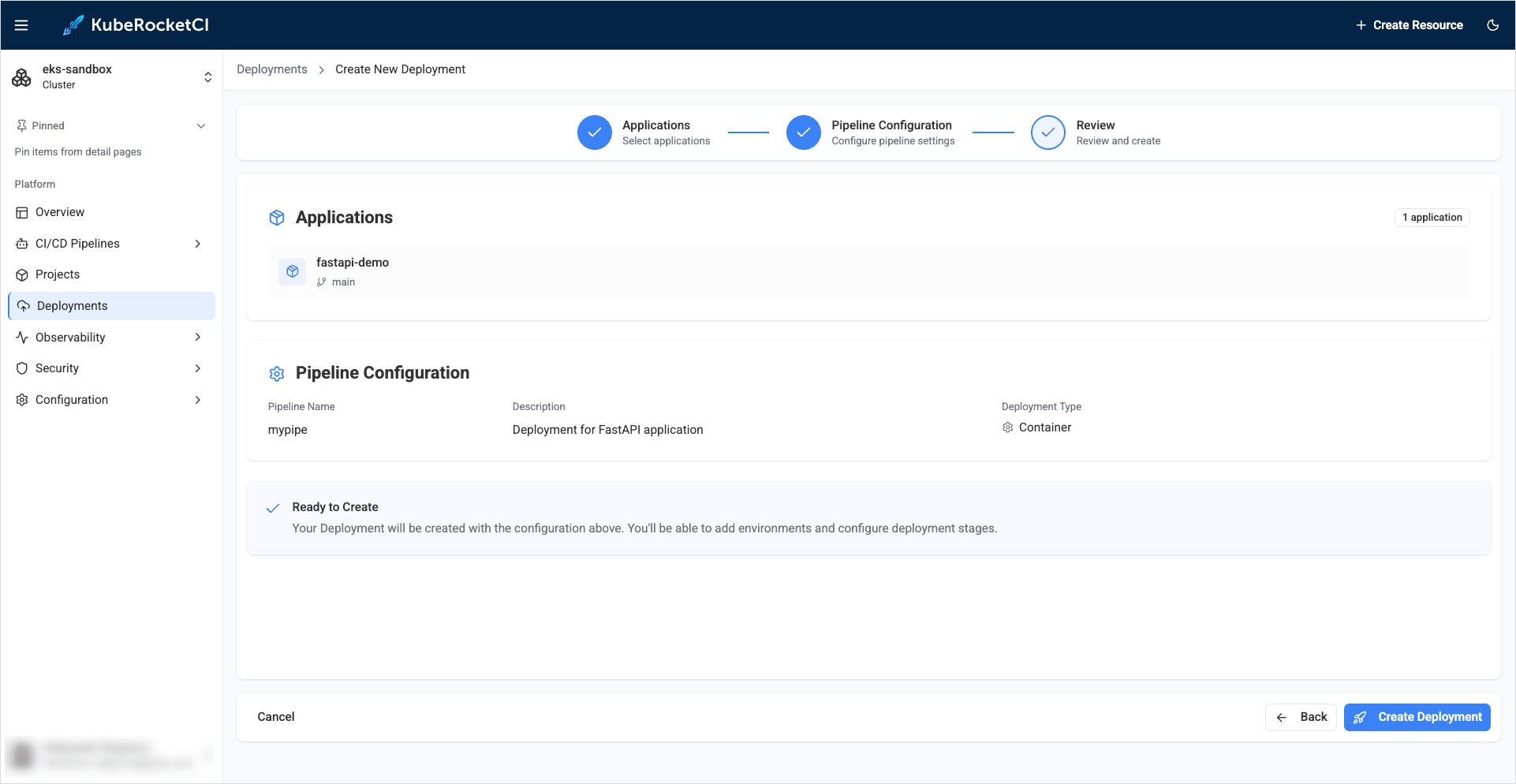
Review:
Verify the Deployment configuration and click Create deployment:
-
-
Now click the
Open deploymentbutton to continue creating the environment: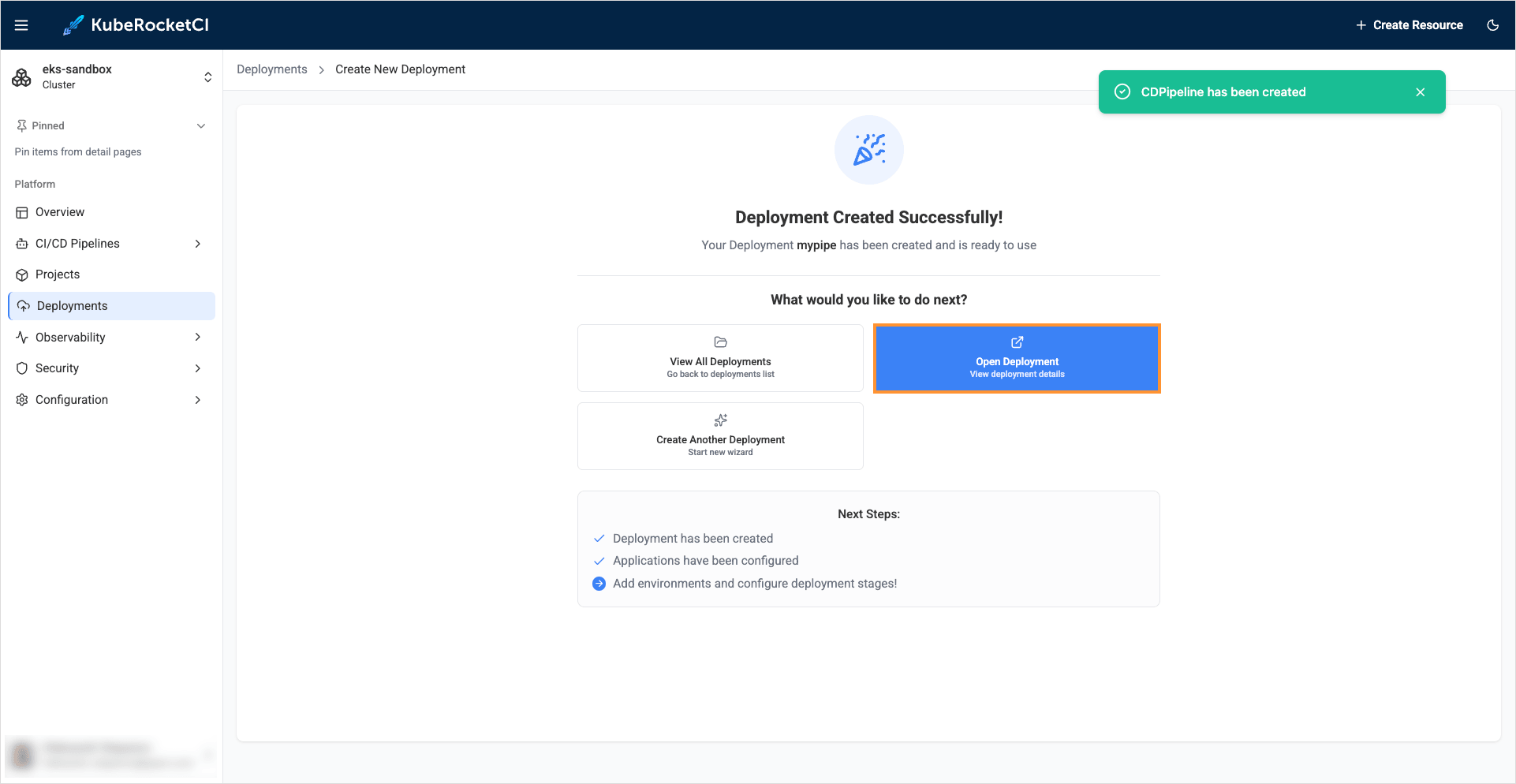
-
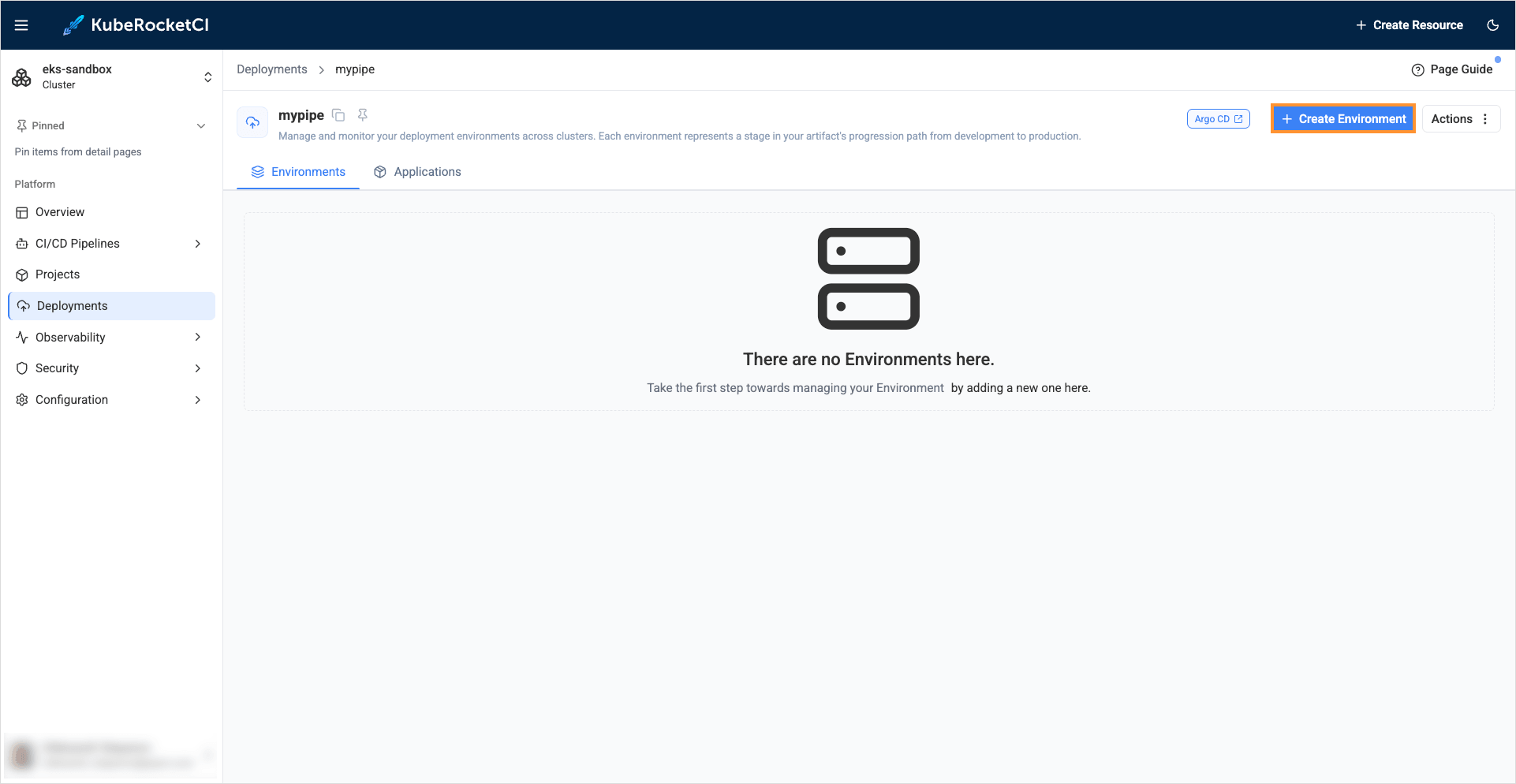
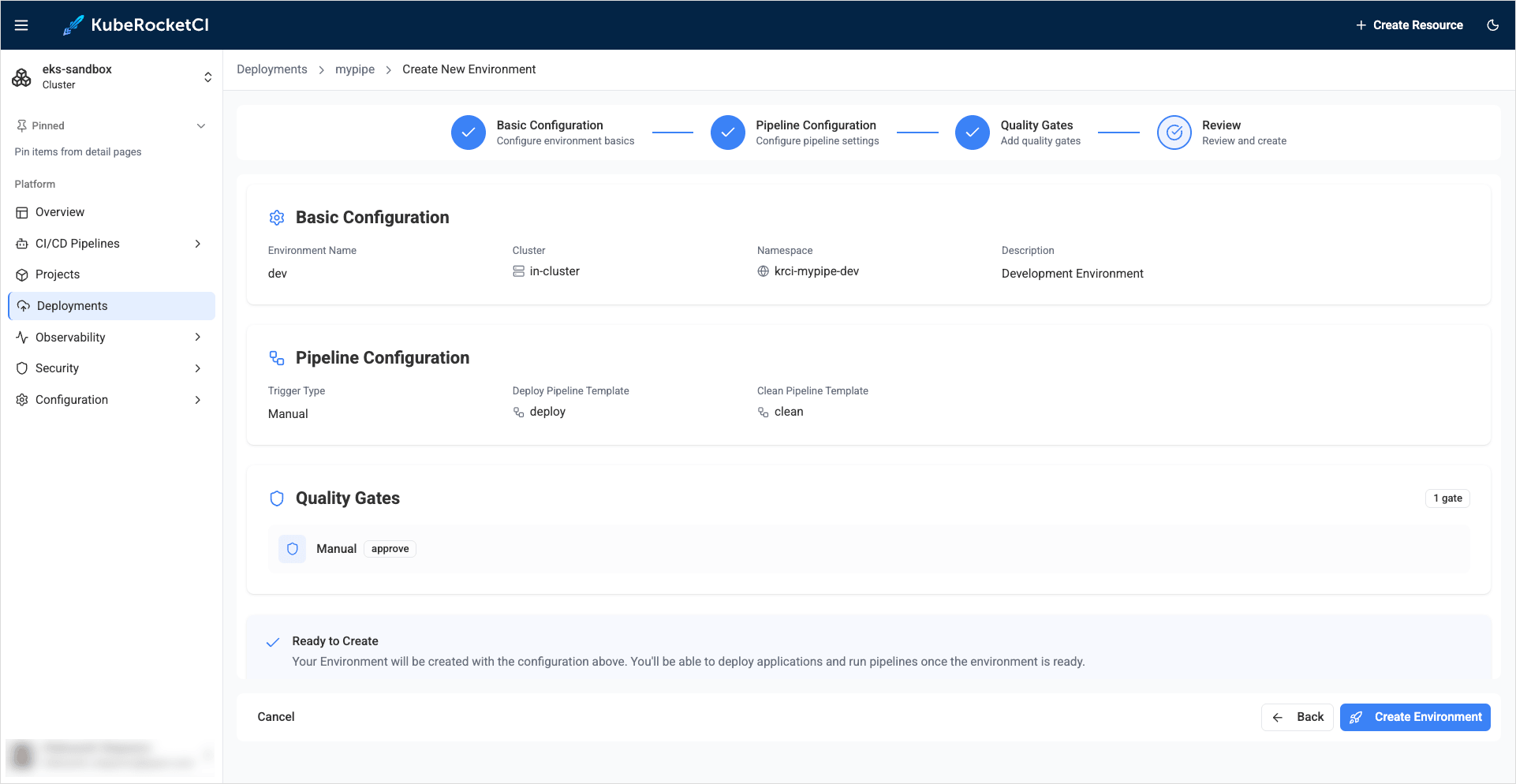
In the Deployment details page, click the + Create environment button to create new environment and fill in the required fields:
-
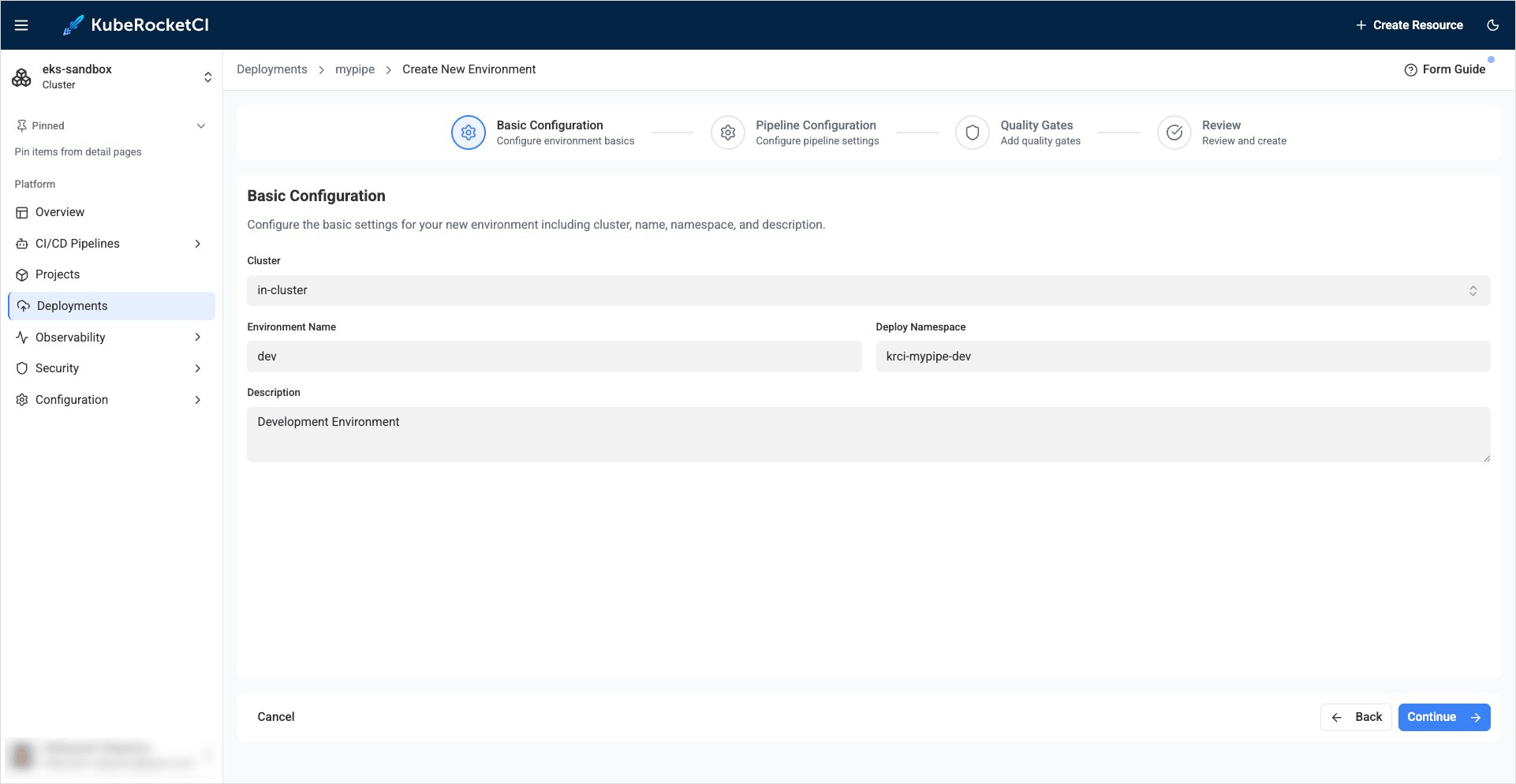
Basic configuration:
- Cluster:
in-cluster - Environment name:
dev - Deploy namespace:
krci-mypipe-dev - Description:
Development Environment
- Cluster:
-
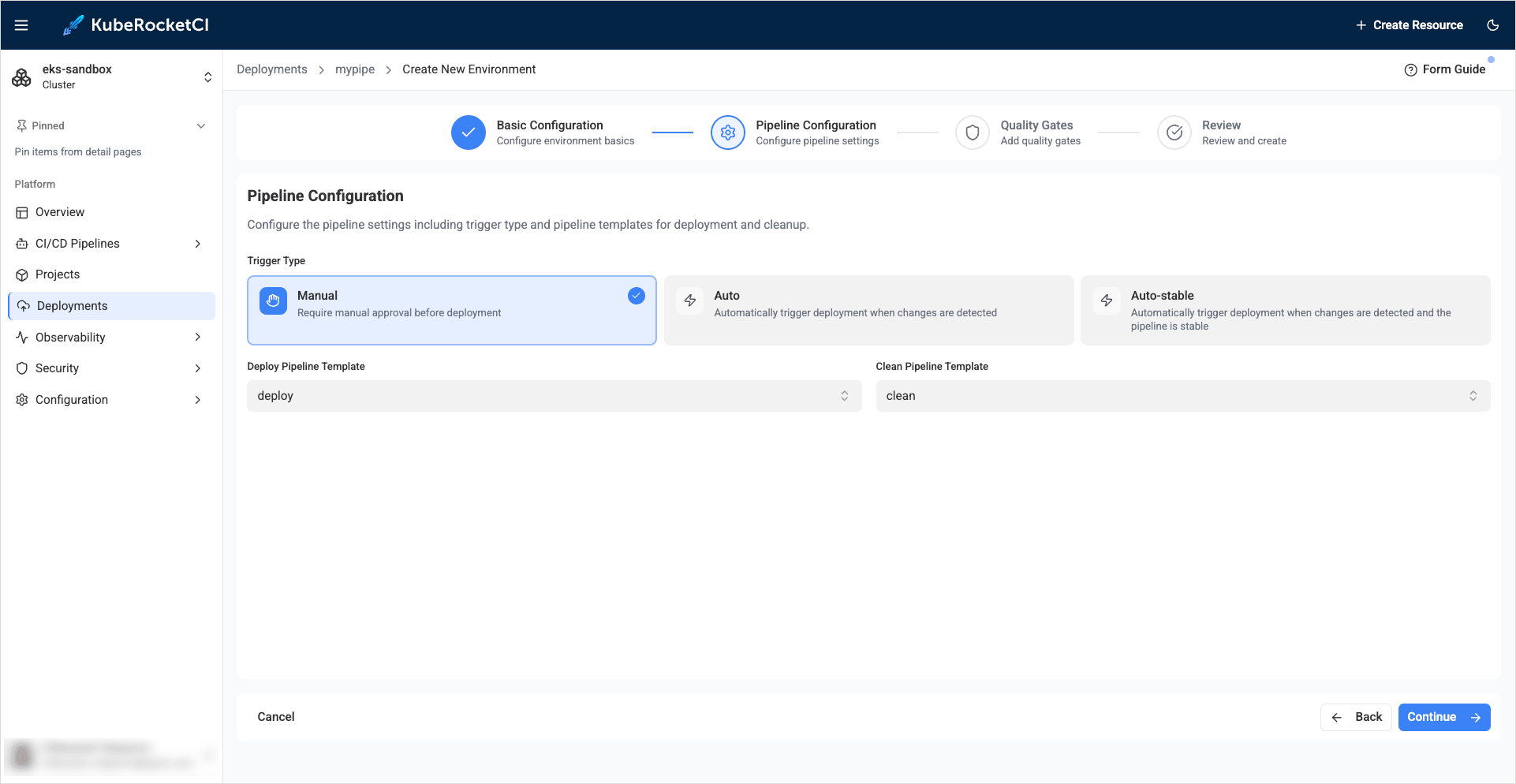
Pipeline configuration:
- Trigger type:
Manual - Deploy Pipeline template:
deploy - Clean Pipeline template:
clean
- Trigger type:
-
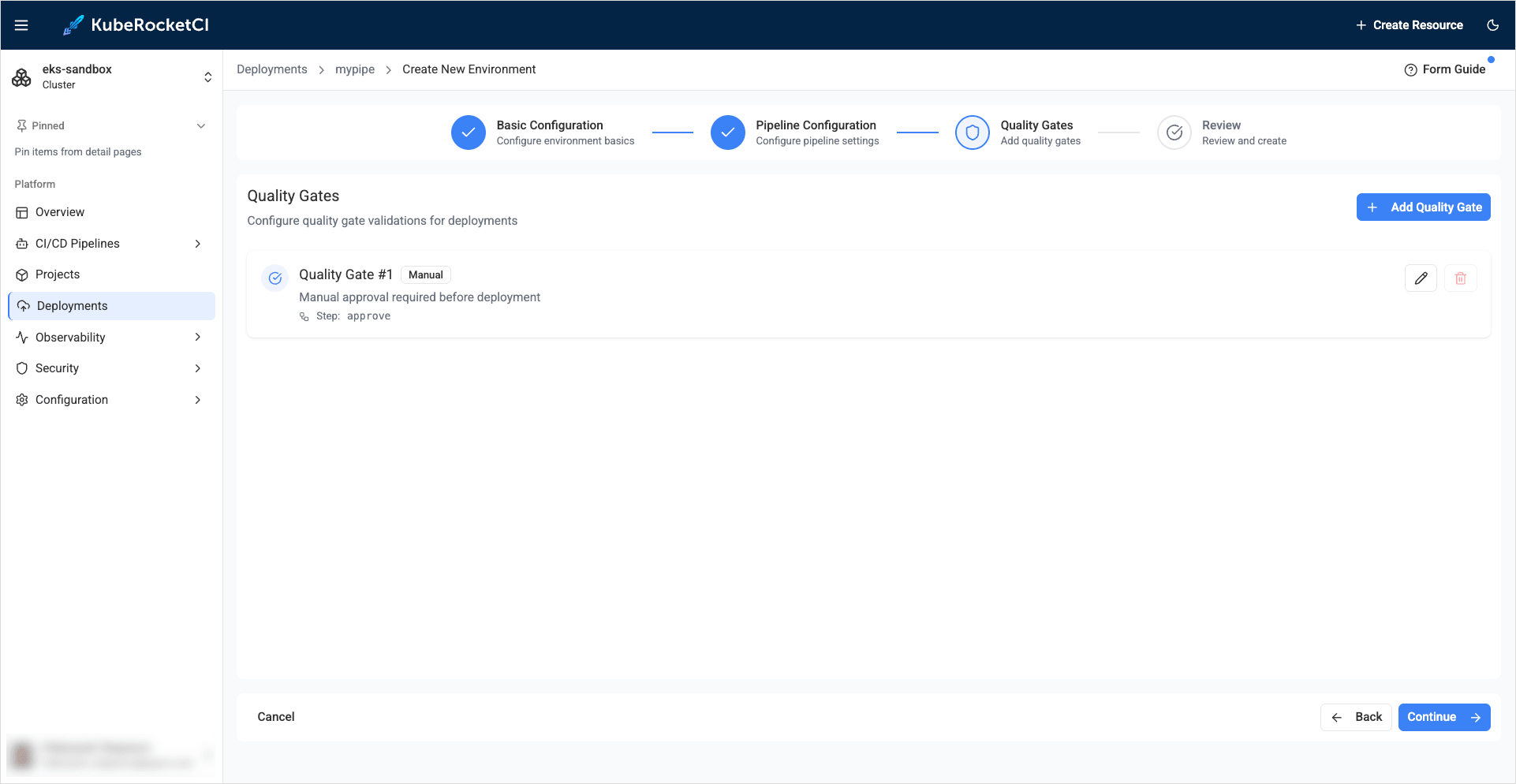
Quality Gates:
Leave everything as is:
-
Review:
Review the specified values and click the Create environment button:
-
-
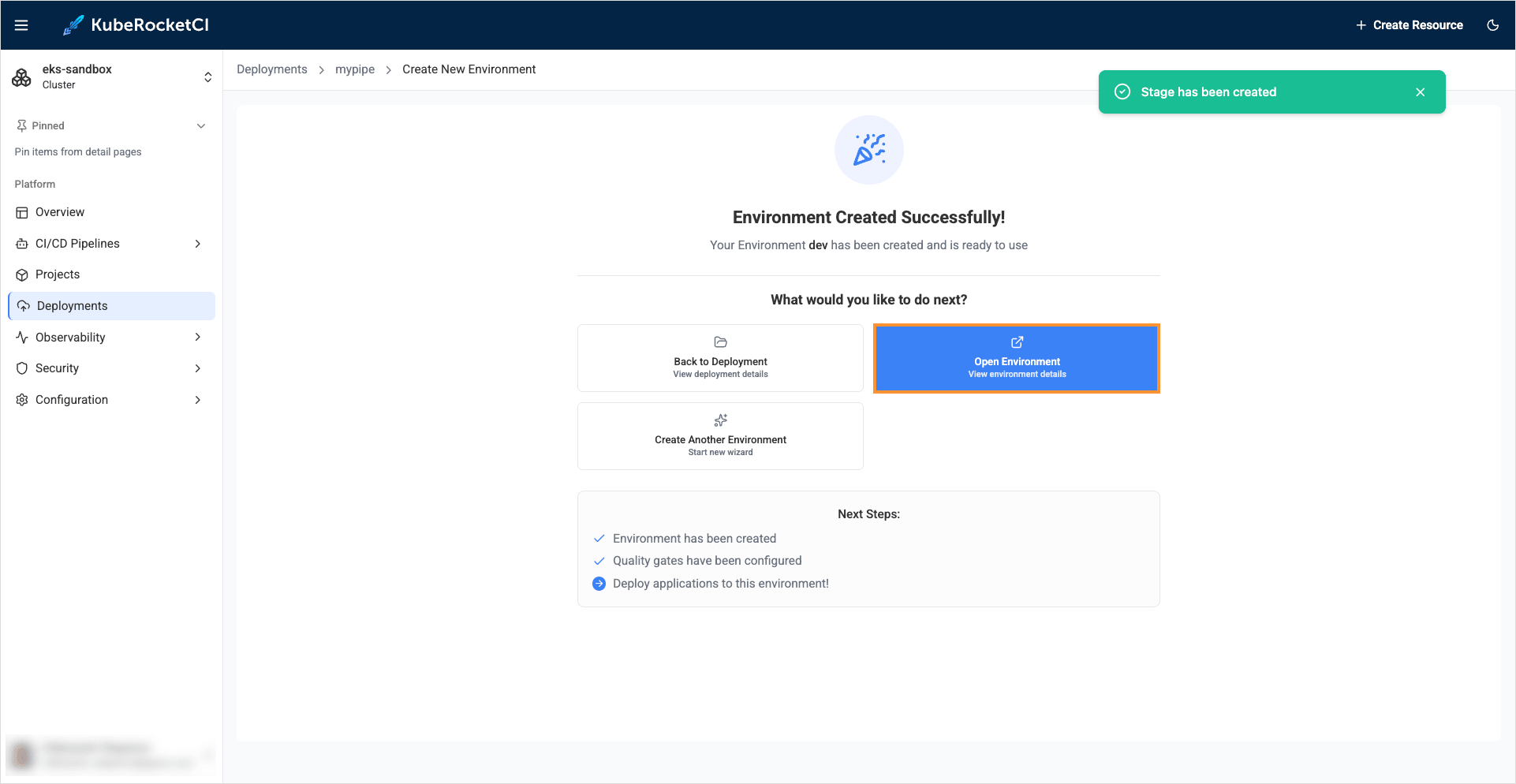
As soon as the Environment is created, click Open environment:
-
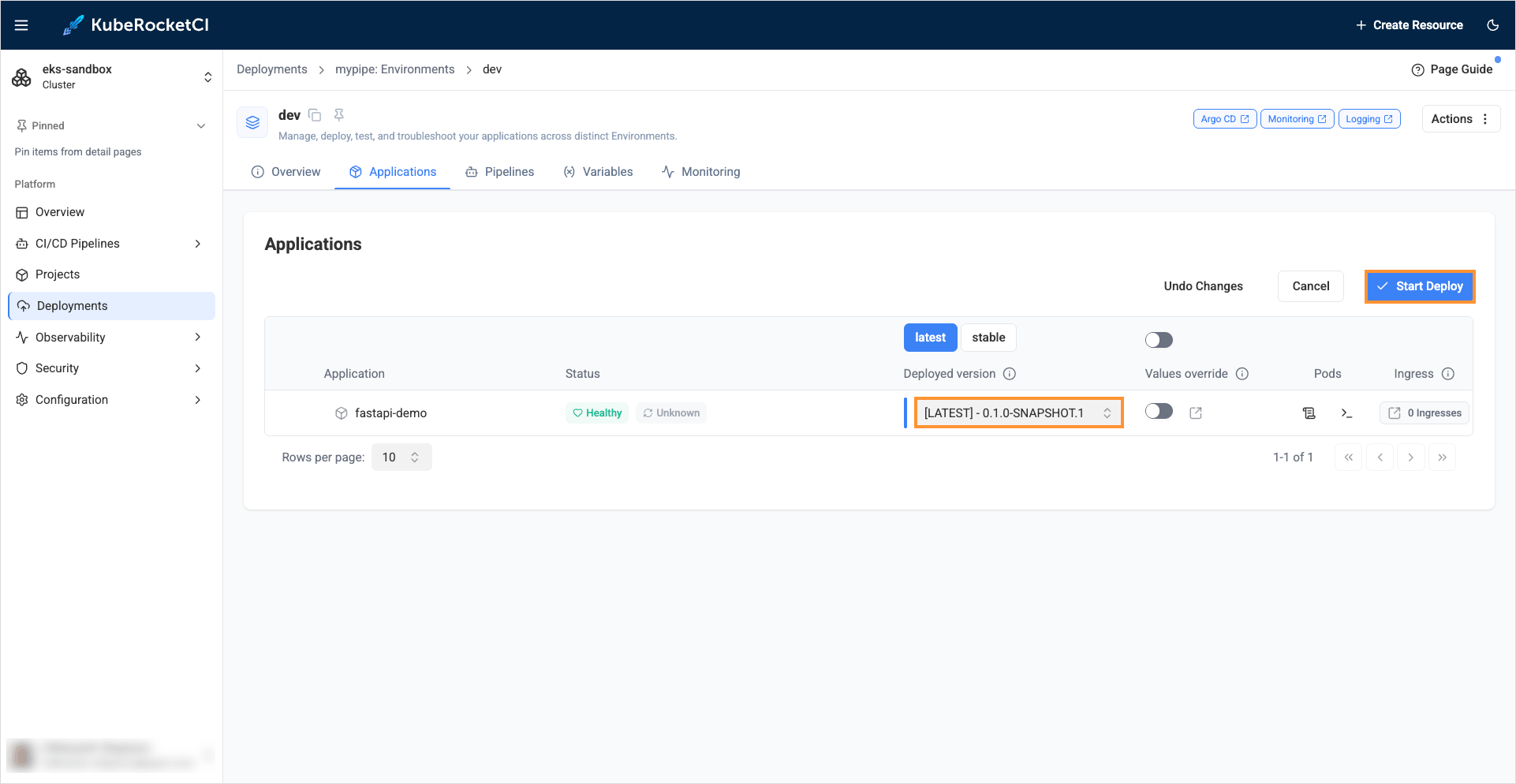
Deploy the initial version of the application to the development environment:
- Select Applications tab.
- Click the Configure deploy button.
- In the Select image tag field select version
0.1.0-SNAPSHOT.1and click the Start deploy button.
-
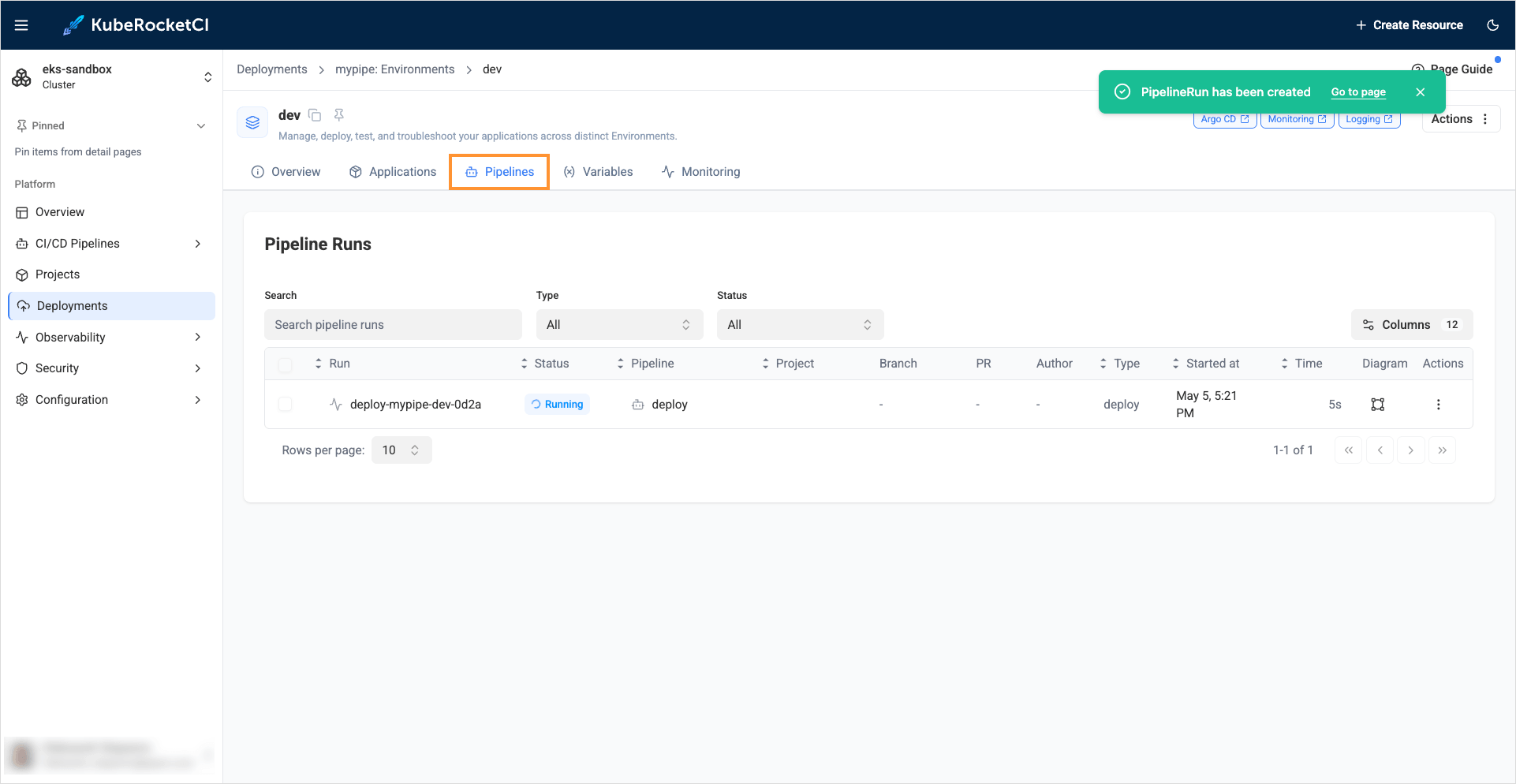
Navigate to the Pipelines tab and click the pipeline name to view its details:
-
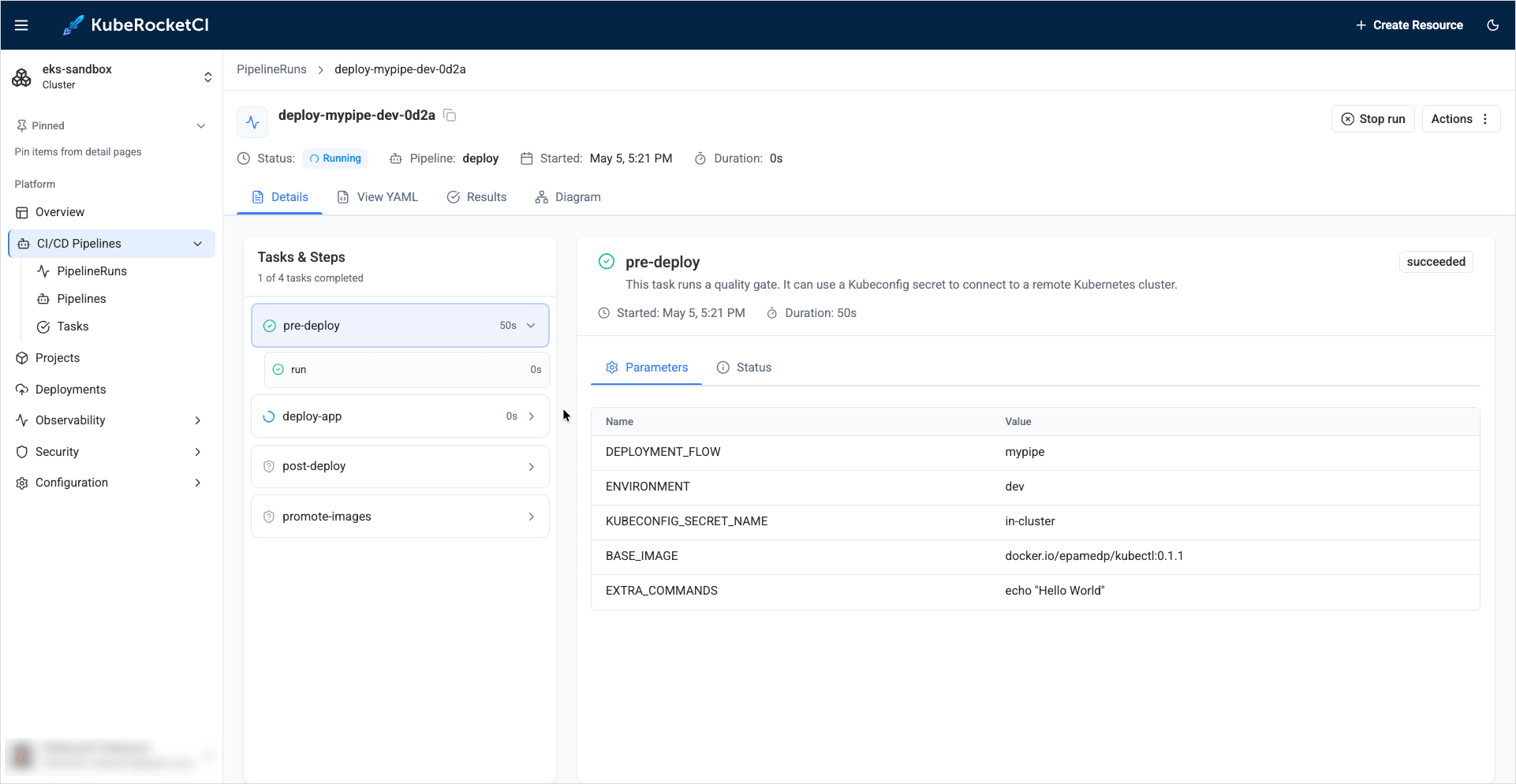
View the Pipeline details until it finishes:
Check the Application Status
To ensure the application is deployed successfully, follow the steps below:
-
Ensure application status is
HealthyandSynced, and theDeployed versionpoints to0.1.0-SNAPSHOT.1: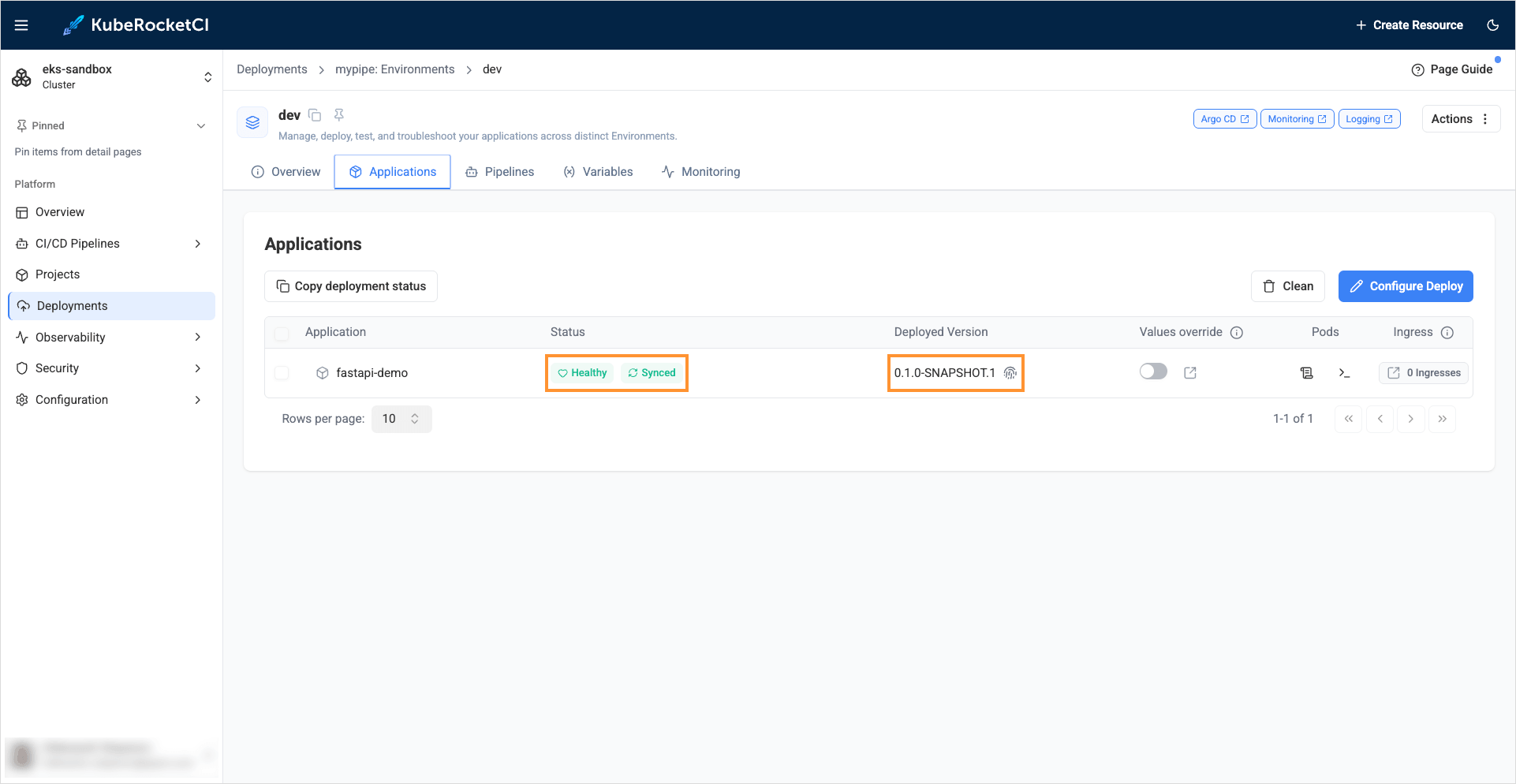
-
Check that the selected version of the container is deployed on the
devenvironment.${KRCI_ENV}- is the KRCI namespace name:# Check the deployment status of fastapi-demo application$ kubectl get deployments -n ${KRCI_ENV}-mypipe-devNAME READY UP-TO-DATE AVAILABLE AGEfastapi-demo 1/1 1 1 14m
Deliver New Code
This section describes the code delivery process. We need to deploy our fastapi-demo application that deploys Ingress object to expose API outside the Kubernetes cluster.
Within the GitOps repository, follow the naming convention <deployment-flow>/<environment>/<application-name>-values.yaml to create the chart values file. For our case, use mypipe/dev/fastapi-demo-values.yaml as the file name. To deploy application with custom application Helm chart values, follow he steps below:
- Commit
mypipe/dev/fastapi-demo-values.yamlfile to the default branch of the GitOps repository:
ingress:
  enabled: true
-
Deploy the
fastapi-demoapplication to the environment. Before the new version deployment, check the ingress object indevenvironment:$ kubectl get ingress -n ${KRCI_ENV}-mypipe-devNo resources found in ${KRCI_ENV}-mypipe-dev namespace.No ingress object exists as expected.
-
Deploy the
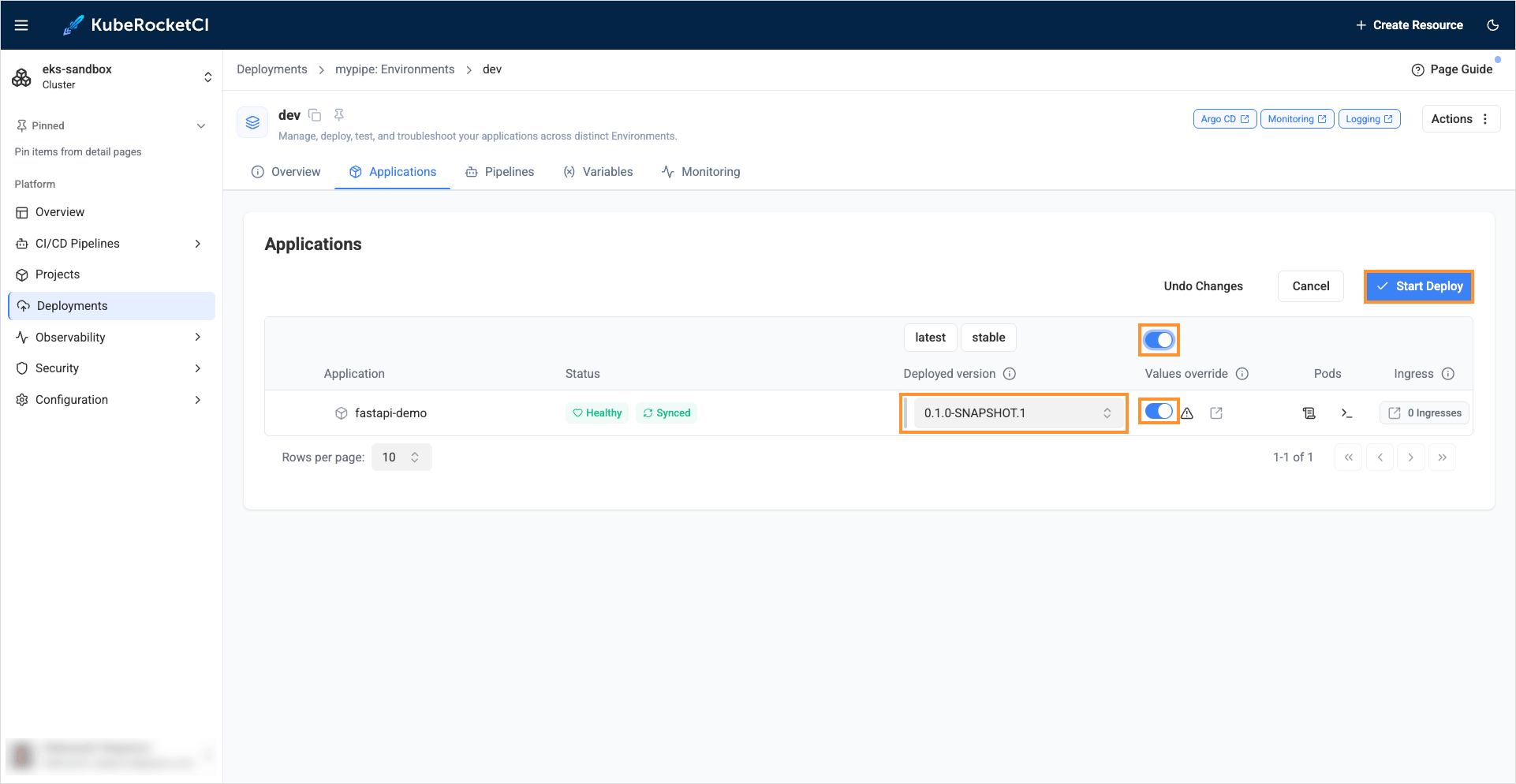
fastapi-demoapplication which has the ingress object in place. Since we useManualdeployment approach, we perform version upgrade manually:To ensure our application recognizes the changes in the GitOps repository related to enabling the creation of the
Ingressresource, we need to set the Override values checkbox totruebefore deploying.- Go to the Deployments section of the KubeRocketCI portal, select
mypipeand choose the dev Environment. - In the Select image tag section select the version
0.1.0-SNAPSHOT.1. - Set the Values override checkbox to
trueand click the Start deploy button. - Check that the application is deployed and application status is
HealthyandSynced.
- Go to the Deployments section of the KubeRocketCI portal, select
-
Check that the new version with Ingress is deployed:
# Check Ingress objectkubectl get ingress -n ${KRCI_ENV}-mypipe-devNAME CLASS HOSTS ADDRESS PORTS AGEfastapi-demo <none> fastapi-demo-ko1zs-example.com 10.100.182.134 80 14m# Check application external URLcurl https://your-hostname-appeared-in-hosts-column-above.example.com{"Hello":"World"}