Publish SonarQube Reports to Pull Requests
Pull request decoration makes SonarQube publish its Quality Gate status and analysis summary directly onto a merge request, so reviewers see new issues, security hotspots, coverage, and duplications without leaving the Git provider. This guide enables the feature in KubeRocketCI end to end, using a self-hosted GitLab instance as the baseline example. The same steps apply to GitHub, Bitbucket, and Azure DevOps — only the DevOps Platform type changes.
By the end, every review pipeline in KubeRocketCI adds a Quality Gate comment and a SonarQube commit status to the corresponding merge request.
How SonarQube Pull Request Decoration Works
KubeRocketCI review pipelines already run SonarQube analysis in pull request mode (the scanner receives the sonar.pullrequest.key, sonar.pullrequest.branch, and sonar.pullrequest.base parameters automatically). To turn that analysis into a merge request comment, SonarQube needs three things:
- A DevOps Platform integration that tells SonarQube how to reach the Git provider and post back (URL + access token).
- A project binding that maps the SonarQube project to its Git repository.
- A reachable Server Base URL so the links in the decoration resolve to your SonarQube instance.
Does SonarQube Community Edition Support Pull Request Decoration?
Yes. SonarQube Community editions add branch and pull request analysis through the sonarqube-community-branch-plugin, which KubeRocketCI ships preinstalled. SonarQube Developer Edition and above provide the same capability natively, so no plugin is required there.
Prerequisites
Before proceeding, ensure the following prerequisites are in place:
- SonarQube is integrated with KubeRocketCI. See SonarQube Integration for the base setup.
- A codebase hosted in GitLab with review and build pipelines already running.
- A GitLab personal (or project/group) access token with the
apiscope. SonarQube uses this token to post comments and commit statuses on merge requests. - Administrator access to the SonarQube UI (or an admin token for the API).
Trust the Git Provider Certificate
SonarQube posts decorations by calling the Git provider's API over HTTPS. If your GitLab (or other provider) serves a self-signed certificate, the SonarQube JVM must trust its CA — otherwise the integration fails on the TLS handshake with Could not validate GitLab url.
The SonarQube Helm chart exposes a caCerts option that imports a certificate into the JVM truststore and wires it into both the web and compute-engine processes (the compute engine runs the decoration):
caCerts:
  enabled: true
  configMap:
    name: gitlab-ca      # ConfigMap holding the provider CA certificate
    key: ca.crt
    path: ca.crt
Skip this step when your Git provider uses a certificate signed by a public, already-trusted Certificate Authority.
Configure the DevOps Platform Integration
Create a global GitLab configuration in SonarQube. Use the UI for a one-time manual setup, or the Web API to automate it.
- SonarQube UI
- SonarQube Web API
-
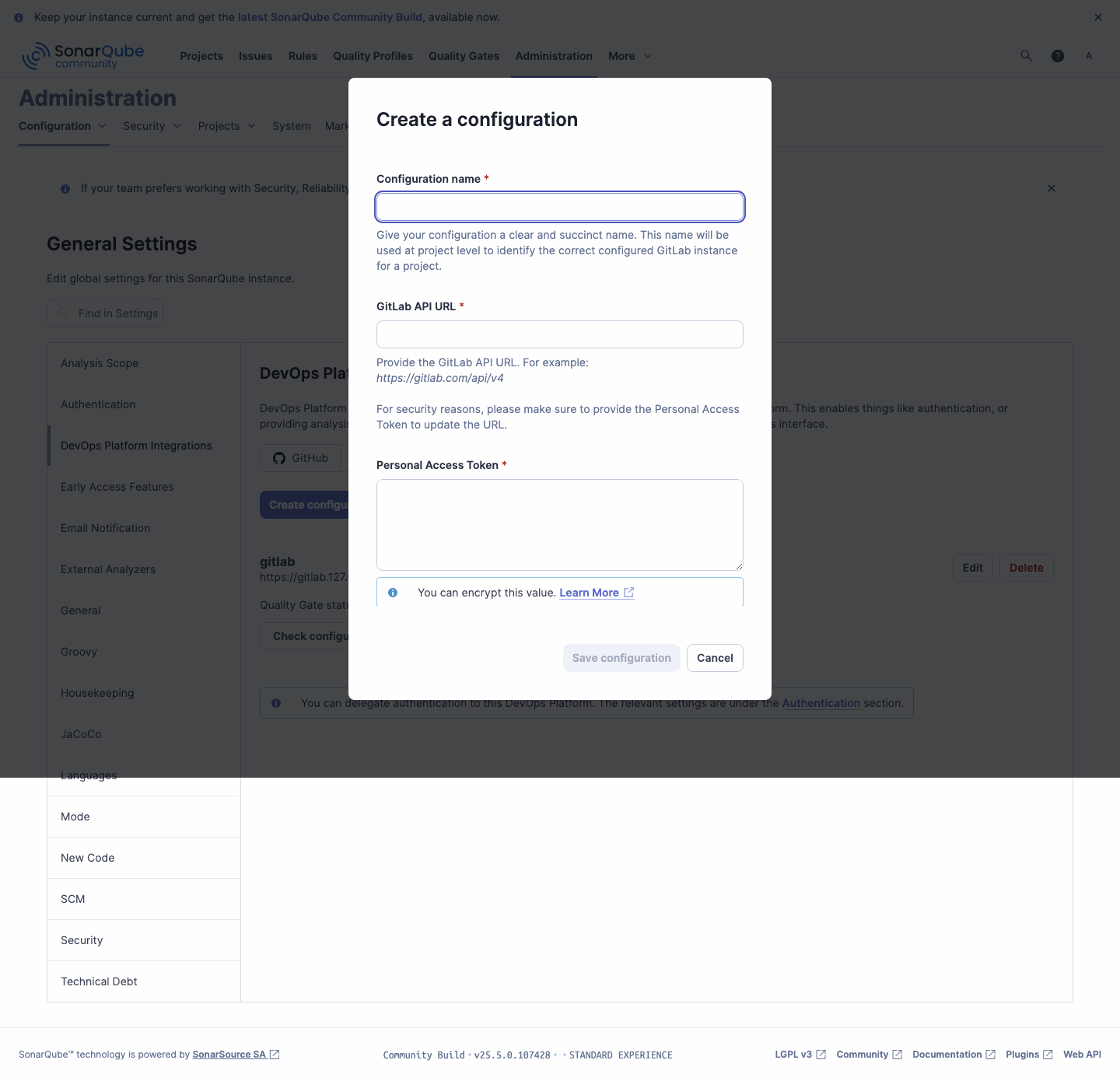
Open the SonarQube UI and navigate to Administration -> Configuration -> DevOps Platform Integrations. Select the GitLab tab and click Create configuration:
-
Fill in the fields and click Save configuration:
- Configuration name — a short identifier used when binding projects, for example
gitlab. - GitLab API URL — the
/api/v4endpoint of your instance, for examplehttps://gitlab.example.com/api/v4. - Personal Access Token — the GitLab token with the
apiscope.
- Configuration name — a short identifier used when binding projects, for example
-
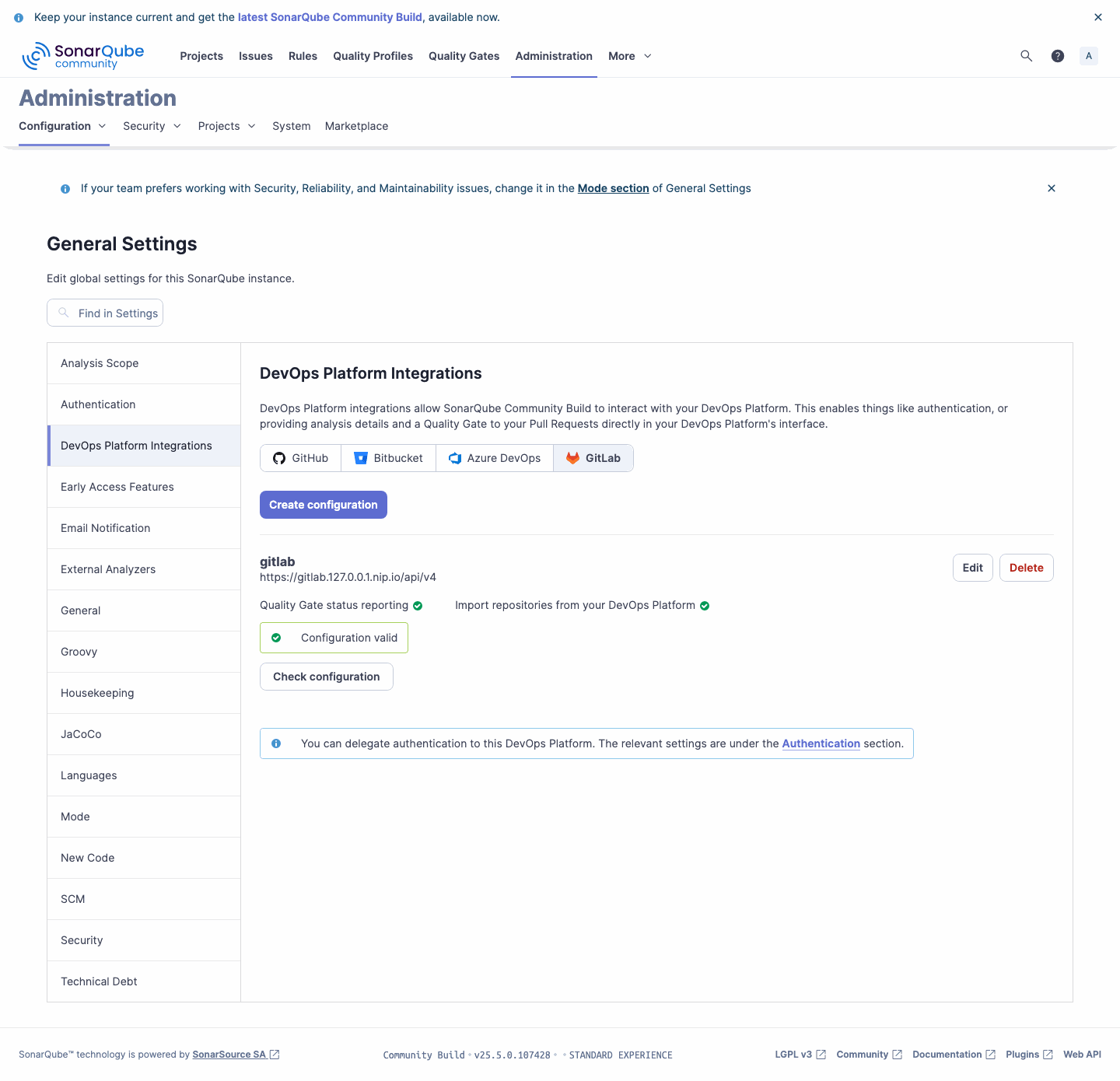
Once saved, the configuration reports Quality Gate status reporting and Import repositories as valid:
Create the global GitLab configuration with the alm_settings/create_gitlab endpoint. Authenticate with an admin token (note the trailing colon, which leaves the password empty):
curl -u "<sonar-admin-token>:" -X POST "https://sonarqube.example.com/api/alm_settings/create_gitlab" \
  --data-urlencode "key=gitlab" \
  --data-urlencode "url=https://gitlab.example.com/api/v4" \
  --data-urlencode "personalAccessToken=<gitlab-token-with-api-scope>"
Verify the configuration can reach GitLab:
curl -u "<sonar-admin-token>:" "https://sonarqube.example.com/api/alm_settings/validate?key=gitlab"
An empty response with HTTP 204 confirms the connection. A Could not validate GitLab url error indicates a connectivity or TLS problem — see Troubleshooting.
Bind the SonarQube Project to Its Repository
Link each SonarQube project to the GitLab repository it should decorate. The project key matches the KubeRocketCI codebase name.
- SonarQube UI
- SonarQube Web API
- Open the project in SonarQube, click Project Settings (top-right), and select DevOps Platform Integration from the left menu of General Settings.
- Choose the
gitlabconfiguration created earlier, provide the repository's GitLab project ID, and save.
The GitLab project ID is shown on the repository's home page under the project name, and in GitLab under Settings -> General.
Bind the project with the alm_settings/set_gitlab_binding endpoint. The repository value is the numeric GitLab project ID:
curl -u "<sonar-admin-token>:" -X POST "https://sonarqube.example.com/api/alm_settings/set_gitlab_binding" \
  --data-urlencode "almSetting=gitlab" \
  --data-urlencode "project=<sonar-project-key>" \
  --data-urlencode "repository=<gitlab-project-id>" \
  --data-urlencode "monorepo=false"
Set the Server Base URL
For the links inside a decoration to resolve back to SonarQube, set the server base URL to the address reachable from the Git provider and reviewers:
curl -u "<sonar-admin-token>:" -X POST "https://sonarqube.example.com/api/settings/set" \
  --data-urlencode "key=sonar.core.serverBaseURL" \
  --data-urlencode "value=https://sonarqube.example.com"
The same value can be set in the UI under Administration -> Configuration -> General -> Server base URL.
Verify Pull Request Decoration End to End
With the integration in place, exercise the full flow on a real merge request:
-
In the GitLab repository, create a feature branch and open a merge request against the default branch.
-
KubeRocketCI triggers the review pipeline, which runs SonarQube analysis in pull request mode.
-
When the analysis completes, SonarQube posts a Quality Gate comment and a
SonarQubecommit status on the merge request: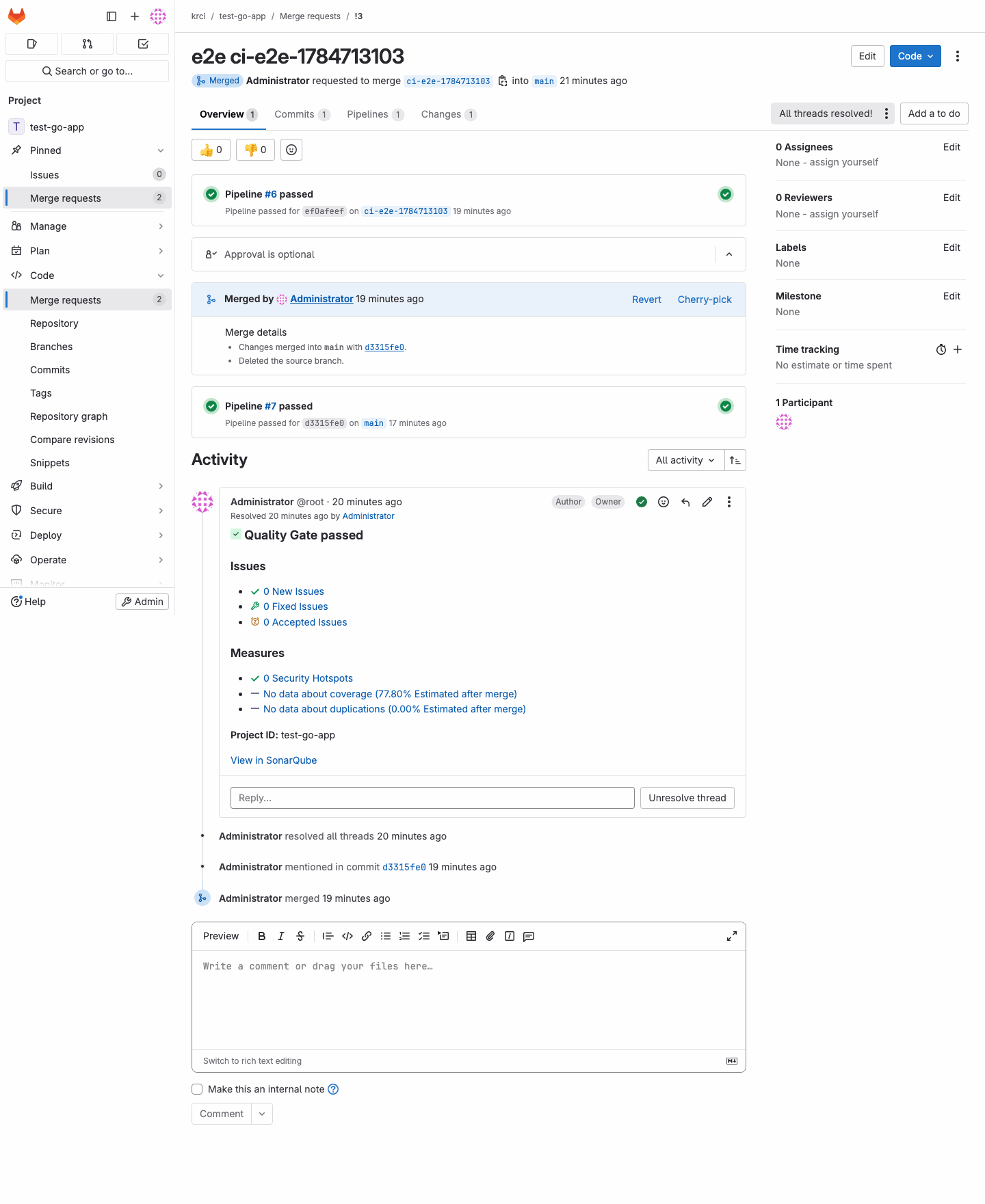
The comment links to the full pull request analysis in SonarQube, and the commit status appears alongside the pipeline status, giving reviewers a Quality Gate signal before the merge request is merged.
Troubleshooting
| Symptom | Cause | Resolution |
|---|---|---|
Could not validate GitLab url. Got an unexpected answer. | SonarQube cannot complete the TLS handshake with a self-signed Git provider, or the URL/token is wrong. | Trust the provider CA as described in Trust the Git Provider Certificate. Confirm the API URL ends with /api/v4 and the token has the api scope. |
Decoration links point to localhost or fail to open | sonar.core.serverBaseURL is unset. | Set the server base URL as shown above. |
| No comment appears on the merge request | The analysis ran in branch mode, not pull request mode (most common), or the project is not bound. | Confirm pull request mode as described below, and check the project binding references the correct GitLab project ID. |
Confirm the Analysis Ran in Pull Request Mode
When both integrations are green but no comment appears, the scanner almost always submitted a branch analysis instead of a pull request analysis. Two quick checks:
- In SonarQube, open the project's branch/pull request selector. A pull request analysis is listed under Pull Requests with the merge request number. If you only see entries named after commit SHAs under Branches, the run was a branch analysis.
- In the generated
sonar-project.properties(or the scanner log), a decorating run setssonar.pullrequest.key,sonar.pullrequest.branch, andsonar.pullrequest.base, and nosonar.branch.name. Seeingsonar.branch.name=<commit-sha>instead confirms the pull request parameters were not provided.
To fix, make the review (merge request) pipeline pass the three pull request parameters and omit the branch parameter — sonar.branch.name and sonar.pullrequest.* are mutually exclusive:
sonar.pullrequest.key=<merge request IID>
sonar.pullrequest.branch=<source branch>
sonar.pullrequest.base=<target branch>
In KubeRocketCI Tekton pipelines these map to the sonarqube-general task inputs key-id, source-branch, and target-branch. If the task is given only branch, it runs a branch analysis and no decoration is posted.