Add Cluster
This page provides comprehensive instructions on how to integrate an external cluster into the KubeRocketCI workloads. By doing so, it creates an opportunity for users to employ multi-cluster deployment, thereby facilitating the segregation of different environments across various clusters.
Prerequisites
Before moving ahead, ensure you have already performed the guidelines outlined in the Argo CD Integration page. Besides, user needs to have a cluster admin role to add clusters.
Integrate External Cluster
To deploy an application to a remote cluster, follow the steps below:
-
Navigate to Configuration -> Deployment -> Clusters and click the + Add cluster button.
-
In the Add cluster window, choose the credentials type and specify the required fields. Click the Save button to add the cluster:
- Bearer Token
- IRSA
- Cluster Name: a unique and descriptive name for the external cluster (e.g., dev2). The platform stores the cluster as a Kubernetes Secret named
<cluster-name>-cluster— this Secret name is the identifier used in all further configuration steps; - Cluster Host: the cluster’s Kubernetes API endpoint. The value must be a full HTTPS URL (e.g.,
https://example-cluster-domain.com:6443) — a bare host name without thehttps://scheme does not pass the form validation; - Cluster Token: a Kubernetes token with permissions to access the cluster. This token is required for proper authorization;
- Skip TLS verification: allows connect to cluster without cluster certificate verification;
- Cluster Certificate: a Kubernetes certificate essential for authentication. Obtain this certificate from the configuration file of the user account you intend to use for accessing the cluster.
noteThe
Cluster Certificatefield is hidden if theskip TLS verificationoption is enabled.- Cluster Name: a unique and descriptive name for the external cluster (e.g., prod);
- Cluster Host: the cluster’s Kubernetes API endpoint. The value must be a full HTTPS URL (e.g.,
https://example-cluster-domain.com:6443) — a bare host name without thehttps://scheme does not pass the form validation; - Certificate Authority Data: base64-encoded Kubernetes certificate essential for authentication. Obtain this certificate from the configuration file of the user account you intend to use for accessing the cluster;
- Role ARN: arn:aws:iam::<AWS_ACCOUNT_B_ID>:role/AWSIRSA_{cluster_name}_CDPipelineAgent.
noteFor more details on how to work with clusters integrated using IRSA approach, please refer to the Deploy Application In Remote Cluster via IRSA page.
-
Wait for the platform to confirm the connection. Clicking Save only creates a Kubernetes Secret named
<cluster-name>-clusterin the platform namespace — the actual connectivity check runs asynchronously in the cd-pipeline-operator (usually under a minute). The cluster card then shows a Connected or Disconnected badge together with the error message, based on theapp.edp.epam.com/cluster-connectedandapp.edp.epam.com/cluster-errorannotations the operator sets on the Secret. A "Secret has been created" notification does not mean the credentials are valid — always wait for the Connected badge before proceeding: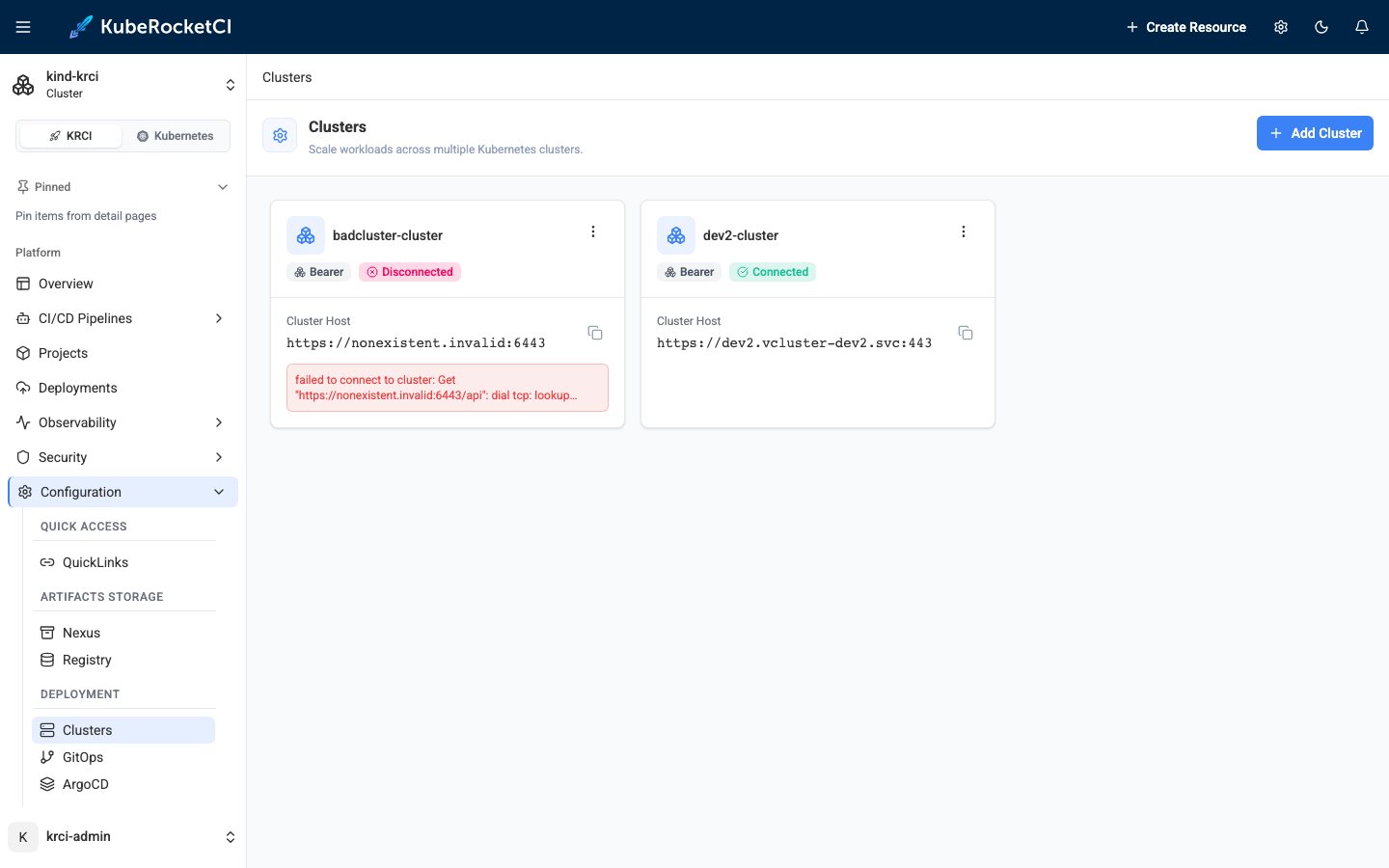 note
noteAdd the cluster while the KubeRocketCI platform namespace (e.g.,
krci) is selected in the Portal. The Secret is created in the currently selected namespace, and the operator only processes cluster Secrets in the platform namespace. -
As soon as the cluster is connected, open the terminal which has access to the cluster that runs the KubeRocketCI deployment.
-
Open the
krci-configConfigMap edit menu using thekubectl editcommand:
kubectl edit ConfigMap krci-config -n krci
-
In the YAML file, add the
available_clustersparameter and insert the Secret name of the cluster — the cluster name you entered in the Portal with the-clustersuffix appended:krci-config ConfigMapdata:available_clusters: <cluster-name>-clusterwarningThe value must exactly match the name of the cluster Secret (
<cluster-name>-clusterfor Bearer clusters), because it becomes theclusterNameof the Environment (Stage) and is resolved as a Secret name by the cd-pipeline-operator. Using the plain cluster name without the suffix results in an Environment that fails withfailed to get cluster secret: secrets "<cluster-name>" not found. For clusters added with the IRSA credentials type, use the name without the-clustersuffix — the operator derives a kubeconfig Secret named<cluster-name>from the IRSA configuration. To list several clusters, separate the values with a comma followed by a space, e.g.available_clusters: dev2-cluster, prod-cluster. -
Ensure the
available_clustersparameter is added into the config map:
kubectl get ConfigMap krci-config -n krci -o yaml
Integrate ArgoCD with External Cluster
To integrate ArgoCD with an external cluster, you need to register the target cluster’s credentials with ArgoCD so that ArgoCD can securely connect to and manage resources in that cluster. This process involves creating a Kubernetes Secret in the ArgoCD namespace containing the cluster connection configuration — Argo CD only discovers cluster Secrets in its own control-plane namespace (typically argocd); the apps-in-any-namespace feature does not apply to cluster Secrets. Depending on your platform and security requirements, authentication can be configured via a static token or by using an AWS IAM Role for Service Accounts (IRSA).
For clusters added with the Bearer credentials type, the cd-pipeline-operator already generates a ready-to-use Argo CD cluster Secret next to the source Secret in the platform namespace as soon as the connectivity check succeeds. Its name is the cluster Secret name with the -argocd-cluster suffix appended: a cluster added as dev2 is stored as Secret dev2-cluster and produces dev2-cluster-argocd-cluster. Instead of composing the Secret manually, you can copy that generated Secret into the ArgoCD namespace (keep the argocd.argoproj.io/secret-type: cluster label).
The name field inside the Secret must exactly match the value you added to available_clusters (e.g., <cluster-name>-cluster). The Argo CD Applications generated by the platform reference the destination cluster by name, taken from the Environment's clusterName — if the names differ, deployments fail with a "cluster not found" error. Also make sure the krci AppProject allows the new destination, as described in the Argo CD Integration page; otherwise deployments fail with InvalidSpecError: application destination server '<cluster-name>-cluster' ... do not match any of the allowed destinations.
Choose the configuration method that matches your external cluster's authentication mechanism and follow the relevant steps below to prepare your cluster for use with ArgoCD.
- Static Token
- IRSA
apiVersion: v1
kind: Secret
metadata:
  name: <cluster-name>-cluster
  namespace: argocd
  labels:
    argocd.argoproj.io/secret-type: cluster
type: Opaque
stringData:
  name: "<cluster-name>-cluster"
  server: "https://EXAMPLED539D4633E53DE1B71EXAMPLE.gr7.<AWS_REGION>.eks.amazonaws.com"
  config: |
    {
      "tlsClientConfig": {
        "insecure": false,
        "caData": ""
      },
      "bearerToken": ""
    }
- Manifests
- External Secrets Operator
apiVersion: v1
kind: Secret
metadata:
  name: <cluster-name>-cluster
  namespace: argocd
  labels:
    argocd.argoproj.io/secret-type: cluster
stringData:
  config: |
    {
      "awsAuthConfig": {
        "clusterName": "<cluster-name>",
        "roleARN": "arn:aws:iam::<AWS_ACCOUNT_A_ID>:role/AWSIRSA_{cluster_name}_ArgoCDMaster"
      },
      "tlsClientConfig": {
        "insecure": false,
        "caData": "<Base64-encoded CA certificate of the target cluster>"
      }
    }
  name: "<cluster-name>"
  server: "https://EXAMPLED539D4633E53DE1B71EXAMPLE.gr7.<AWS_REGION>.eks.amazonaws.com"
"<cluster-name>-cluster": {
  "config": {
    "awsAuthConfig": {
      "clusterName": "<cluster-name>",
      "roleARN": "arn:aws:iam::<AWS_ACCOUNT_B_ID>:role/AWSIRSA_{cluster_name}_ArgoCDMaster"
    },
    "tlsClientConfig": {
      "insecure": false,
      "caData": "<Base64-encoded CA certificate of the target cluster>"
    }
  },
  "name": "<cluster-name>",
  "server": "https://EXAMPLED539D4633E53DE1B71EXAMPLE.gr7.<AWS_REGION>.eks.amazonaws.com"
}
After applying the configuration, you can verify the cluster connection ArgoCD -> Settings -> Clusters -> <cluster-name>.
Deploy application on new cluster
To create a Deployment with an Environment, follow the instructions specified in the Add Deployment page.
When creating an Environment, specify your new cluster name in the Cluster field.
Remove External Cluster
To disconnect an external cluster from the platform, remove the resources in the following order:
- Delete (or migrate) all Environments that reference the cluster.
- Remove the cluster name from the
available_clustersparameter in thekrci-configConfigMap. - Delete the cluster in the Portal (Configuration -> Deployment -> Clusters) — this deletes the cluster Secret together with the generated Argo CD Secret owned by it.
- Delete the Argo CD cluster Secret you created in the ArgoCD namespace and remove the destination from the
krciAppProject.
Always delete Environments before the cluster Secret. If the Secret is removed first, the cd-pipeline-operator can no longer reach the cluster during Environment deletion and skips the remote cleanup, leaving orphaned namespaces and RBAC objects on the external cluster.