Install Keycloak
Inspect the prerequisites and the main steps to perform for installing Keycloak.
The installation process below is given for a Kubernetes cluster. The steps that differ for an OpenShift cluster are indicated in the warnings blocks.
Prerequisites
- Kubectl version 1.26.0+ is installed. Please refer to the Kubernetes official website for details.
- Helm version 3.14.0+ is installed. Please refer to the Helm page on GitHub for details.
Out team recommends a Keycloakx helm chart from the codecentric repository, but other repositories can be used as well (e.g. Bitnami). Before installing Keycloak, it is necessary to install a PostgreSQL database.
It is also possible to install Keycloak using the cluster add-ons. For details, please refer to the Install via Add-Ons page.
PostgreSQL Installation
To install PostgreSQL, follow the steps below:
-
Check that a security namespace is created. If not, run the following command to create it:
kubectl create namespace securitywarningOn the OpenShift platform, apply the
SecurityContextConstraintsresource. Change the namespace in theuserssection if required.View: keycloak-scc.yaml
allowHostDirVolumePlugin: falseallowHostIPC: falseallowHostNetwork: falseallowHostPID: falseallowHostPorts: falseallowPrivilegeEscalation: trueallowPrivilegedContainer: falseallowedCapabilities: nullapiVersion: security.openshift.io/v1allowedFlexVolumes: []defaultAddCapabilities: []fsGroup:type: MustRunAsranges:- min: 999max: 65543groups: []kind: SecurityContextConstraintsmetadata:annotations:"helm.sh/hook": "pre-install"name: keycloakpriority: 1readOnlyRootFilesystem: falserequiredDropCapabilities:- KILL- MKNOD- SETUID- SETGIDrunAsUser:type: MustRunAsRangeuidRangeMin: 1uidRangeMax: 65543seLinuxContext:type: MustRunAssupplementalGroups:type: RunAsAnyusers:- system:serviceaccount:security:keycloakxvolumes:- configMap- downwardAPI- emptyDir- persistentVolumeClaim- projected- secretView: postgresql-keycloak-scc.yaml
allowHostDirVolumePlugin: falseallowHostIPC: falseallowHostNetwork: falseallowHostPID: falseallowHostPorts: falseallowPrivilegeEscalation: trueallowPrivilegedContainer: falseallowedCapabilities: nullapiVersion: security.openshift.io/v1allowedFlexVolumes: []defaultAddCapabilities: []fsGroup:type: MustRunAsranges:- min: 999max: 65543groups: []kind: SecurityContextConstraintsmetadata:annotations:"helm.sh/hook": "pre-install"name: postgresql-keycloakpriority: 1readOnlyRootFilesystem: falserequiredDropCapabilities:- KILL- MKNOD- SETUID- SETGIDrunAsUser:type: MustRunAsRangeuidRangeMin: 1uidRangeMax: 65543seLinuxContext:type: MustRunAssupplementalGroups:type: RunAsAnyusers:- system:serviceaccount:security:defaultvolumes:- configMap- downwardAPI- emptyDir- persistentVolumeClaim- projected- secret -
Create PostgreSQL admin secret:
kubectl -n security create secret generic keycloak-postgresql \--from-literal=password=<postgresql_password> \--from-literal=postgres-password=<postgresql_postgres_password> -
Add a helm chart repository:
helm repo add bitnami https://charts.bitnami.com/bitnamihelm repo update -
Install PostgreSQL v15.2.0 using bitnami/postgresql Helm chart v12.1.15:
infoThe PostgreSQL can be deployed in production ready mode. For example, it may include multiple replicas, persistent storage, autoscaling, and monitoring. For details, please refer to the official Chart documentation.
helm install postgresql bitnami/postgresql \--version 12.1.15 \--values values.yaml \--namespace security
Check out the values.yaml file sample of the PostgreSQL customization:
View: values.yaml
# PostgreSQL read only replica parameters
readReplicas:
  # Number of PostgreSQL read only replicas
  replicaCount: 1

image:
  tag: 15.2.0-debian-11-r0

global:
  postgresql:
    auth:
      username: admin
      existingSecret: keycloak-postgresql
      database: keycloak

primary:
  persistence:
    enabled: true
    size: 3Gi
Keycloak Installation
To install Keycloak, follow the steps below:
-
Use
securitynamespace from the PostgreSQL installation. -
Add a chart repository:
helm repo add codecentric https://codecentric.github.io/helm-chartshelm repo update -
Create Keycloak admin secret:
kubectl -n security create secret generic keycloak-admin-creds \--from-literal=username=<keycloak_admin_username> \--from-literal=password=<keycloak_admin_password> -
Install Keycloak 20.0.3 using codecentric/keycloakx Helm chart:
infoKeycloak can be deployed in production ready mode. For example, it may include multiple replicas, autoscaling, and monitoring. For details, please refer to the official Chart documentation.
helm install keycloakx codecentric/keycloakx \--version 2.3.0 \--values values.yaml \--namespace securityCheck out the values.yaml file sample of the Keycloak customization:
View: values.yaml
replicas: 1# Deploy the latest versionimage:tag: "24.0.4"# The following parameter is unrecommended to expose. Exposed health checks lead to an unnecessary attack vector.health:enabled: false# The following parameter is unrecommended to expose. Exposed metrics lead to an unnecessary attack vector.metrics:enabled: falsecommand:- "/opt/keycloak/bin/kc.sh"- "--verbose"- "start"extraEnv: |- name: KC_HOSTNAMEvalue: "keycloak.<ROOT_DOMAIN>"- name: KC_SPI_HOSTNAME_DEFAULT_ADMINvalue: "keycloak.<ROOT_DOMAIN>"- name: KC_HTTP_ENABLEDvalue: "true"- name: KC_HOSTNAME_STRICTvalue: "false"- name: KC_HOSTNAME_STRICT_HTTPSvalue: "false"- name: KC_SPI_EVENTS_LISTENER_JBOSS_LOGGING_SUCCESS_LEVELvalue: "info"- name: KEYCLOAK_ADMINvalueFrom:secretKeyRef:name: keycloak-admin-credskey: username- name: KEYCLOAK_ADMIN_PASSWORDvalueFrom:secretKeyRef:name: keycloak-admin-credskey: password- name: JAVA_OPTS_APPENDvalue: >--XX:+UseContainerSupport-XX:MaxRAMPercentage=50.0-Djava.awt.headless=true-Djgroups.dns.query={{ include "keycloak.fullname" . }}-headless-Dkeycloak.connectionsHttpClient.default.expect-continue-enabled=true-Dkeycloak.connectionsHttpClient.default.reuse-connections=false- name: HTTP_ADDRESS_FORWARDINGvalue: "true"- name: PROXY_ADDRESS_FORWARDINGvalue: "true"# This block should be uncommented if you install Keycloak on Kubernetesingress:enabled: trueannotations:nginx.ingress.kubernetes.io/proxy-buffer-size: 256k# Defines the class of the Ingress Controller.# It allows you to choose which Ingress controller in cluster should be used to expose the Keycloak service to the outside world.ingressClassName: "nginx"# Exposes Keycloak paths according to the rules from documentation.# Ref: https://www.keycloak.org/server/reverseproxy#_exposed_path_recommendationsconsole:enabled: falserules:- host: keycloak.<ROOT_DOMAIN>paths:- path: '{{ tpl .Values.http.relativePath $ | trimSuffix "/" }}/'pathType: Prefixproxy:enabled: truemode: "edge"# This block should be uncommented if you set Keycloak to OpenShift and change the host field# route:# enabled: false# # Path for the Route# path: '/'# # Host name for the Route# host: "keycloak.<ROOT_DOMAIN>"# # TLS configuration# tls:# enabled: trueresources:limits:memory: "2048Mi"requests:cpu: "50m"memory: "512Mi"# Check database readiness at startupdbchecker:enabled: truedatabase:vendor: postgresexistingSecret: keycloak-postgresqlhostname: postgresqlport: 5432username: admindatabase: keycloak
Configuration
For configuring Keycloak within your environment, it's recommended to utilize the edp-keycloak-operator. This operator simplifies the integration process by automating the deployment and management of Keycloak instances. It ensures that Keycloak is correctly configured to serve as an identity provider, facilitating secure access management across your applications.
By leveraging the edp-keycloak-operator, you can efficiently manage realms, users, and client configurations, making it an essential tool for robust access control in Kubernetes environments.
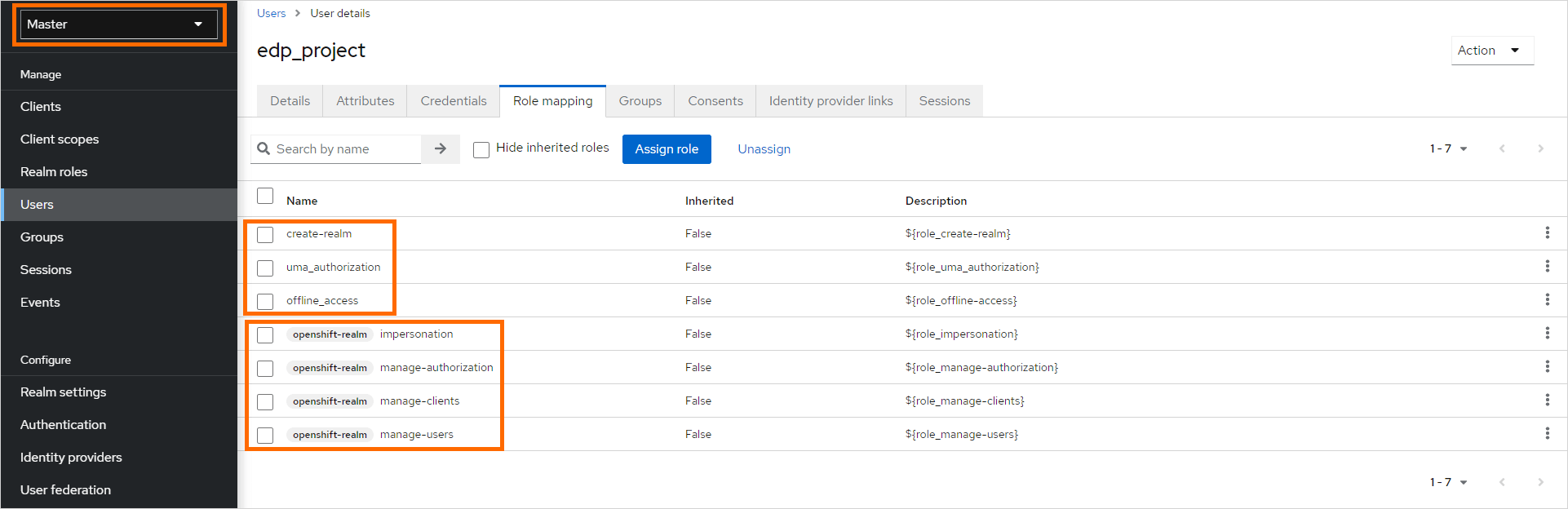
To create a Keycloak user in the Master realm who can manage other realms, follow these steps:
-
Create the
edp_<EDP_PROJECT>user and set the password in theMasterrealm.noteThis user should be used by Keycloak Operator to access Keycloak. Please refer to the Install KubeRocketCI page for details.
-
In the
Role Mappingtab, assign the proper roles to the user:-
Realm Roles:
- create-realm,
- offline_access,
- uma_authorization
-
Client Roles
openshift-realm:- impersonation,
- manage-authorization,
- manage-clients,
- manage-users
 note
noteopenshift-realmis the realm name used as thebrokerrealm, which is utilized for integrating third-party Identity Providers. You can find more information about this integration in the kuberocketci-rbac repository of the KubeRocketCI platform. -